LockeyUSA EB915 Bluetooth Programming Electronic Lock Instructions Page 1
Open the original PDF document
View PDFBluetooth Settings Manual
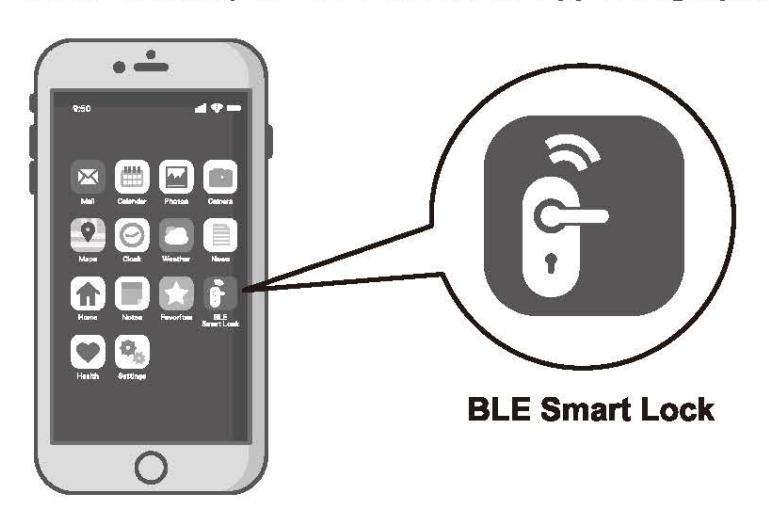
Please download "BLE Smart Lock"
on Google Play or App Store.

Once the installation is completed, turn on the device's Bluetooth and open "BLE Smart Lock" App to begin pairing.
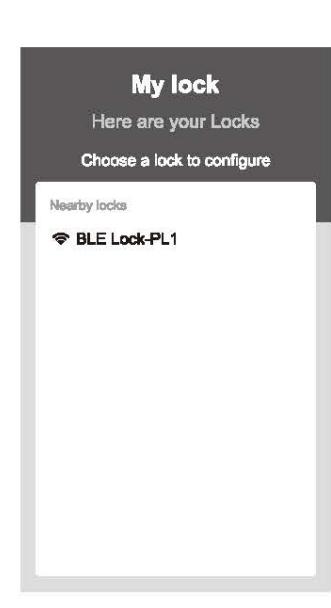
Wait for the page to scan for Bluetooth locks
Locks found will be shown on screen. Select the lock with default name of "BLE Lock-PL1" to continue.
Note: Bluetooth scanning time may vary depending on Android manufacturers.
Attention: "BLE Lock-PL1" shown in black font means the unit is available.

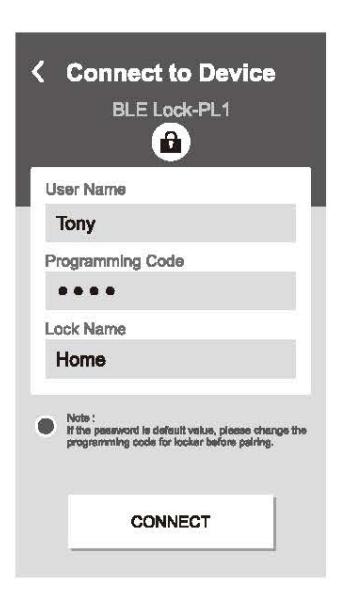
Enter lock information to proceed with pairing. Chinese characters are not supported. Please use alphanumeric characters only.
Attention: The factory default programming code is: 0-0-0-0.
If the programming code has been changed by user, please enter the newly changed programming code.
Pairing With Bluetooth Lock
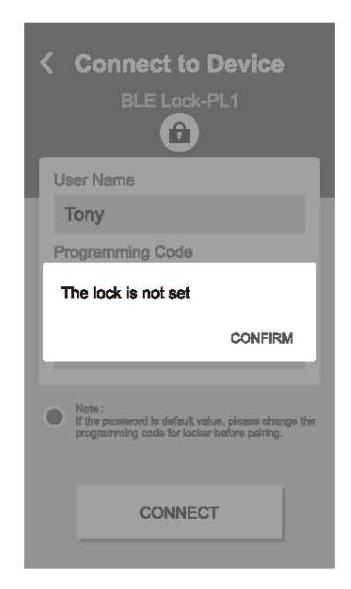
Attention:
When "The lock is not set" message appears
Please follow the instructions for door handing - so that your lock knows if it is used on a left hand or right hand door. Then proceed with pairing.
Attention:
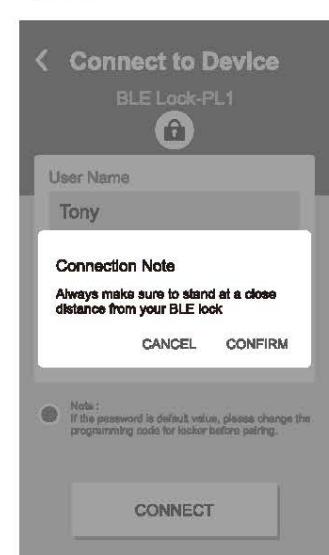
When "Motor Detect Error" message appears. Bluetooth pairing must be carried out while the lock is in unlocked state.
CONFIRM
Please first unlock, then proceed with pairing
Follow the tips, touch lock with mobile phone and select "OK".
Connect to Device
CONNECT
User Name
Motor Detect Error
Tony
This step calibrates the sensor proximity. Please ensure the pairing process is done with mobile phone as close to the lock as possible. Failing to do so will cause sensor distance error and increase safety detection warning area.
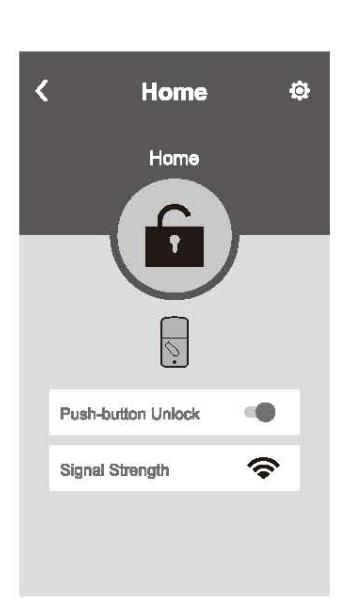
Bluetooth paring is completed when the lock setting screen displays the following:
0 Administrator Function Settings Home Lock Name (Set by user)
Go Back

Lock Battery Level
Push-Button Unlock On / Off (Default on)
3
Bluetooth signal strength between Smart phone and lock
Lock / Unlock With Paired Mobile Phone
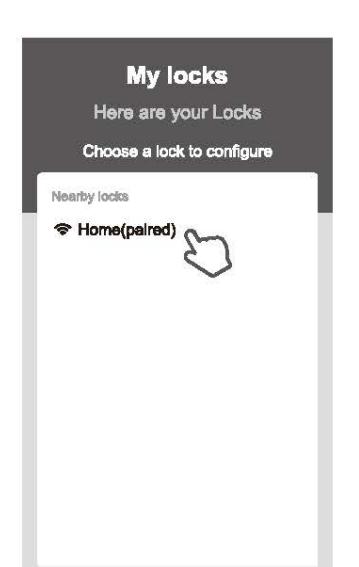
Open BLE Smart Lock App and select paired
Attention: The working range between the lock and your Smartphone is around 16 feet (5m).
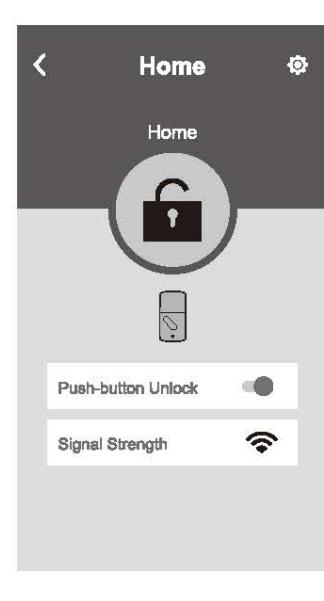
Unlocked Icon
The GREEN (unlocked) icon means the current status of the lock is "UNLOCKED".
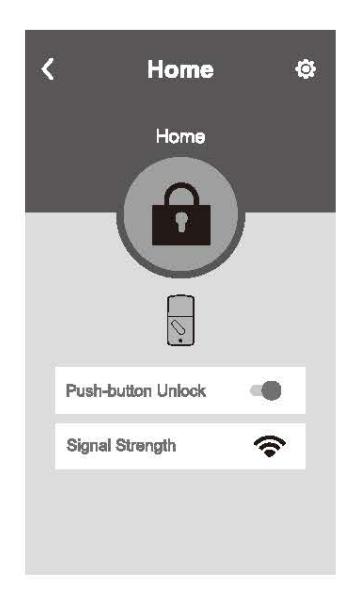
Locked Icon
The ORANGE (locked) icon means the current status of the lock is "LOCKED".
Bluetooth Authentication
Press "Back" key and exit App.
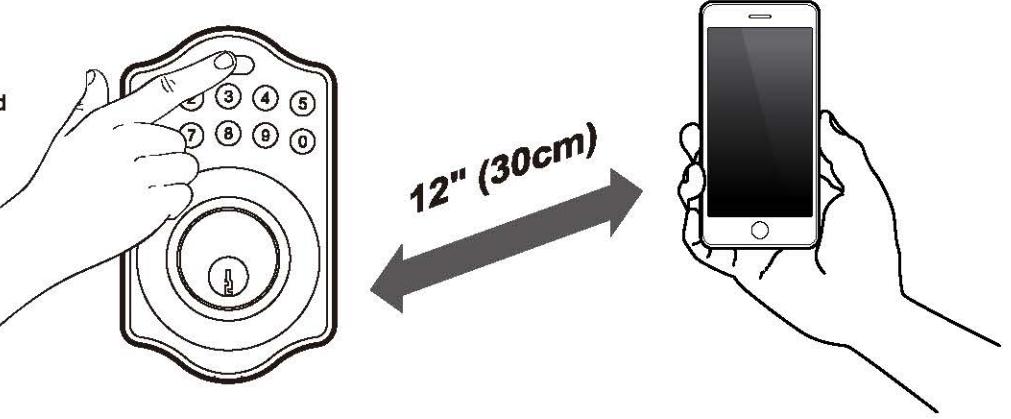
Make sure your smart phone is within 12" (30cm) of the lock, then push the top button on your lock to proceed with Bluetooth authentication.
Once authenticated, the mobile phone will send "Unlocked" notification and unlock.
Bluetooth authentication time may vary between different Android manufacturers and should not take longer than 5 seconds.
Attention: If authentication fails, mobile phone will send "Unlock distance error" notification. Please adjust the distance between mobile phone and lock to within 12" (30cm), and then try again.
Administrator Functions
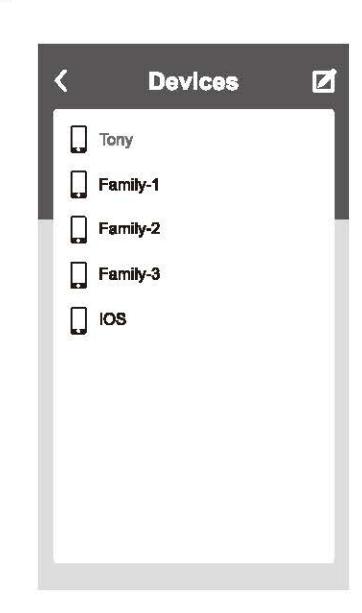
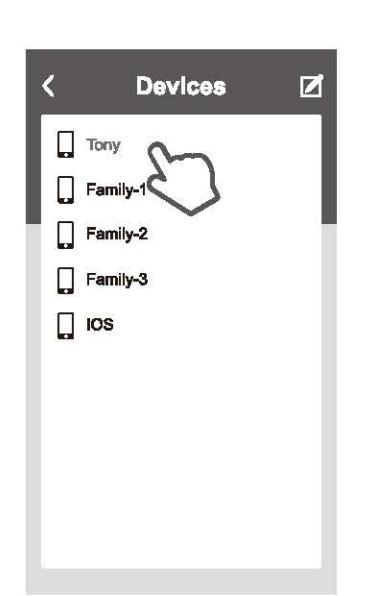
Load paired devices list
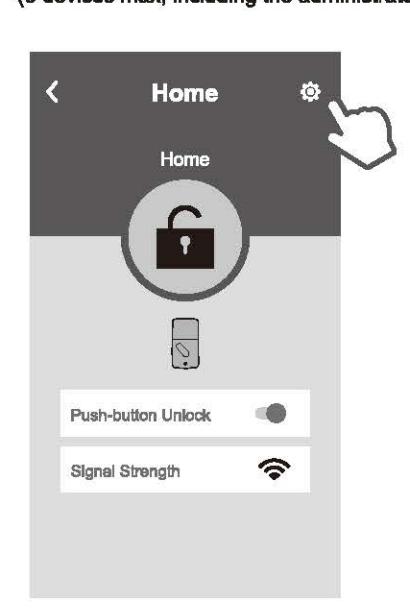
Select the Setting icon on the top right corner of the locking setting screen to view paired Bluetooth devices.
Administrator's name appears in red. All other users' name appear in black. (6 devices max, including the administrator)
Delete Paired Device From List
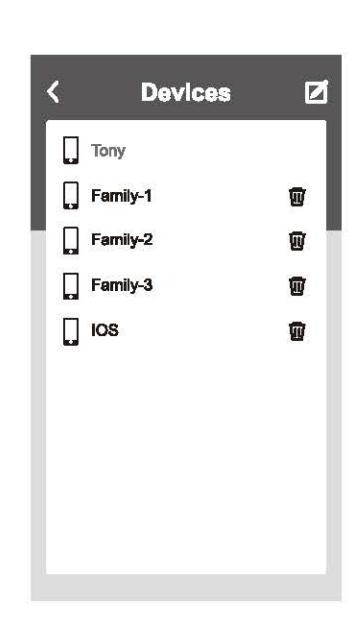
On "Paired Devices" screen, select the "Edit" button on the top right corner and "Delete" icon
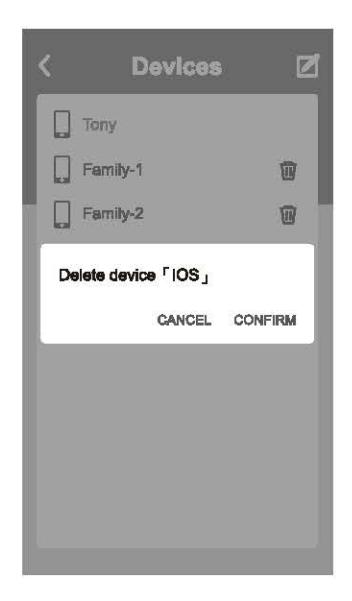
After pressing delete icon, confirm by pressing "OK" on the confirmation screen to delete.
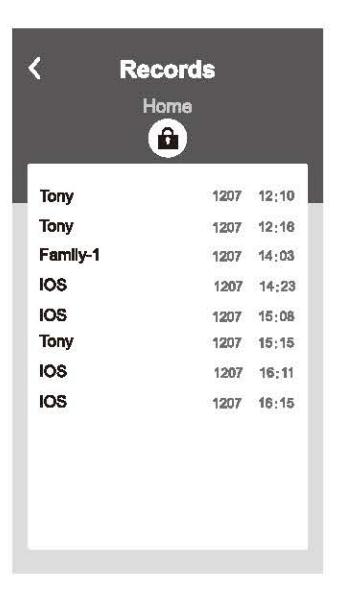
Review Usage Log
Select administrator device name (in red) to review usage log.
Attention: Unlocks made with passwords will show in log as "Code", but no date and time information will be recorded.
REGULATORY COMPLIANCE
This product complies with standards established by the following regulatory bodies: • Federal Communications Commission (FCC) • Industry Canada
This device complies with Part 15 of the FCC Rules.
Operation is subject to the following two conditions:
(1) this device may not cause harmful interference, and (2) this device must eccept any interference received, including interference that may cause undesired operation. This equipment has been tested and found to comply with the limits for a Class B digital device, pursuant to Part 15 of the FCC Rules. These limits are designed to provide reasonable protection against harmful interference in a residential installation. This equipment generates, uses, and can radiate radio frequency energy and, if not installed and used in accordance with the instructions, may cause harmful interference to radio communications. However, there is no guarantee that interference will not occur in a particular installation.
If this equipment does cause harmful interference to radio or television reception, which can be determined by turning the equipment off and on, the user is encouraged to try to correct the
interference by one or more of the following measures:
- Reorient or relocate the receiving antenna. Increase the separation between the equipment and receiver.
- Connect the equipment into an outlet on a circuit different from that to which the receiver is connected. Consult the dealer or an experienced radio/TV technician for help.
Changes or modifications not expressly approved by the manufacturer could void the user authority to operate the equipment.
Safety Detection
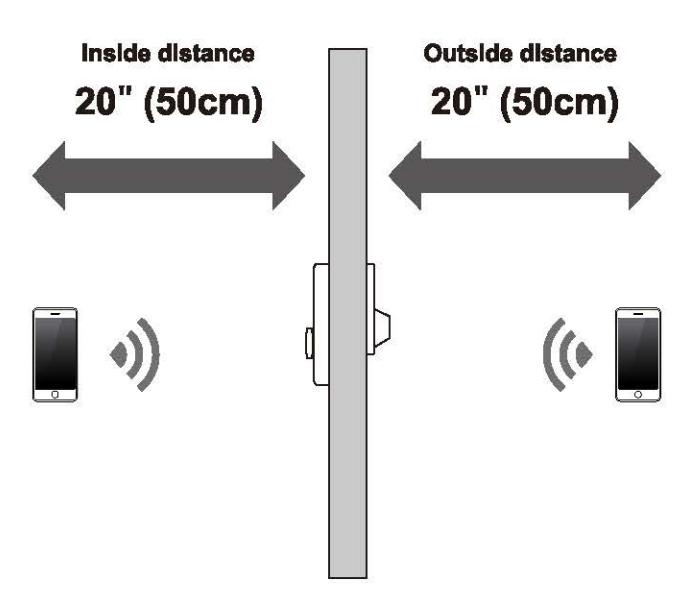
When the smart phone is within 20" (50cm) of the lock and the connection has been established - a 10 seconds countdown will begin on the lock.
If user does not unlock within 10 seconds by pressing the "Bluetooth" button, five short beeps will sound warning the user that currently mobile phone is within connection distance and they should move out of the 20" (50cm) connection range.
Troubleshooting
| 8 | ||
|---|---|---|
| Problem | Possible Causes | Actions |
| Unable to find locks on the scan page, |
|
|
| "The lock is not set" message appears during pairing process. | Door handing has not been set. | Please refer to user manual and set door handing first before attempting to pair with the lock. |
|
"Motor Detect Error"
message appears during pairing process. |
Lock has not been unlocked. | Please turn lock bolt to "Unlocked" state/status, then try the pairing process again. |
|
"Lock Has Been Reset"
message appears when entering Settings screen in App. |
(1) The lock has been reset by other users. (2) User has been deleted by administrator. | (1) Please turn lock bolt to "Unlocked" state/status, then try the pairing process again. (2) Please consult with the administrator. |
| Unable to perform one push unlock. | (1) Mobile phone is too far from the lock. (2) Push-Button unlock is not enabled. (3)Lock has been reset. |
|
| Safety detection still beeps warning at distance over 3 feet (1m). | Mobile phone was not paired correctly by touching the lock during the pairing process. | Please reset lock or contact administrator and delete currently user, then try pairing the lock again to establish safety distance. |