Aiphone JSS-1A JS-1HD Operation Manual
Open the original PDF document
View PDFJSS-1A
HANDS-FREE COLOR VIDEO INTERCOM SET (JS-1MD MASTER MONITOR STATION, JS-DA VIDEO DOOR STATION, and power supply)
JS-1HD SUB MONITOR STATION
OPERATION MANUAL
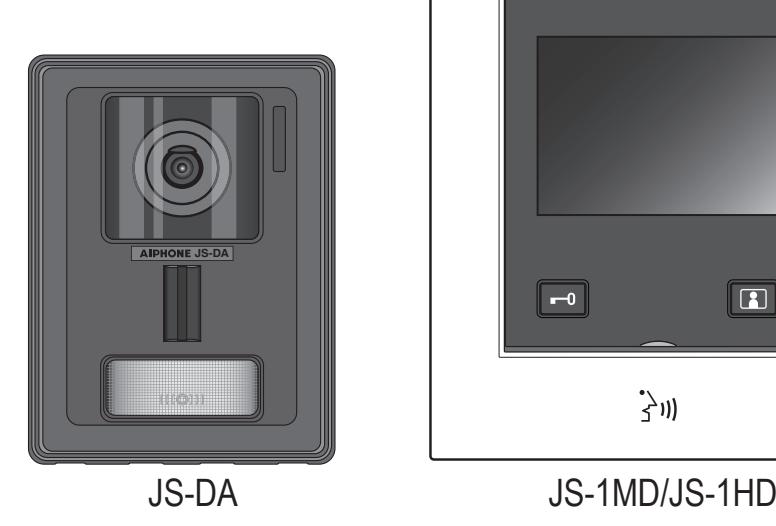
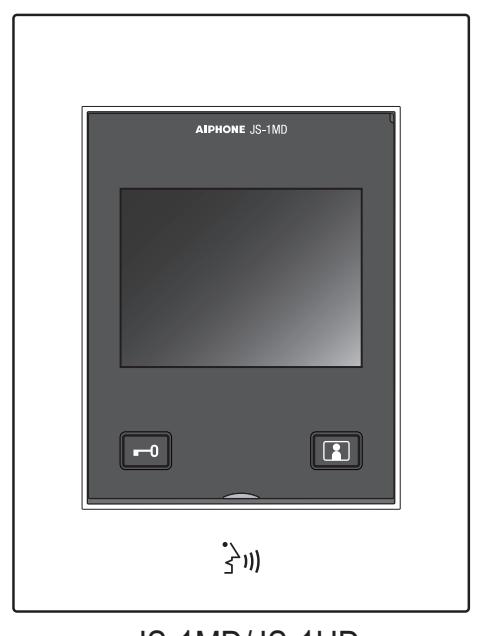
- Read this "Operation Manual" prior to usage to ensure safe and correct operation. Keep this in a safe place for future reference.
- The illustrations used in this manual may differ from the actual ones.
* The illsutration is JS-1MD.
PRECAUTIONS


Prohibited Do not dismantle unit

Be sure to follow the instruction

WARNING (Negligence could result in death or serious injury.)
■ Do not disassemble or modify the station.

This may result in fire or electrical shock.
■ Keep the station away from flammable materials.

If this happens, turn off the power switch on the side of the station. This may result in fire or electrical shock.
■ Keep the station away from liquid.

If this happens, turn off the power switch on the side of the station. This may result in fire or electrical shock.
-
■
Turn off the power switch on the side of the station and disconnect the cable from the station if any of the following conditions are present:
- ・ Smoke
- ・ Abnormal odor
- ・ Abnormal sound
- ・ Station is damaged

Failure to do so may result in fire or electrical shock.
■ Use the Aiphone power supply specific for use with the system.

This may result in fire or malfunction.

CAUTION (Negligence could result in injury to people or damage to property.)
■ Do not attempt to cover, insulate, or coat the station in any way.

This may result in fire or malfunction.
■ Do not apply excess pressure to the LCD screen.

If the screen is punctured, it may result in injury.
■ If the LCD is punctured, do not touch the liquid crystal inside.

Inflammation could result.
- ・ If liquid crystal is ingested, immediately gargle with water and consult your doctor.
- ・ If contact should occur, flush or rinse area with water thoroughly and consult your doctor.
- ■ Do not put your ear close to the speaker when using the station.

May cause harm to the ear if a sudden loud noise is emitted.
General Precautions
- Keep the unit more than 1m (3.3') away from radio or TV set.
- Keep the station at least 20 cm (7-7/8") away from wireless devices such as wireless routers, or cordless telephones. These devices may cause the image or sound distortion.
- Talk within 30cm (12") or less from the station. If you stand too far away, it may be difficult for the other person to hear the communication.
- If the station is down or does not operate properly, turn off the power switch on the monitor station.
- When installing or using the station, give consideration to the privacy rights of subjects, as it is the responsibility of the system owner to post signs or warnings in accordance with local ordinances.
- Do not install the monitor station under direct sunlight. If it is necessary, shield the station from sunlight or the screen may be difficult to view.
- Door station is weather-resistant, but do not spray with high-pressure water. This may result in malfunction.
- As to other 3rd party devices (such as sensor, detectors, door releases) used with this system, comply with the Specifications and Warranty conditions that the manufacturers or venders present.
Notice
- Aiphone is not to be held responsible for any and all damages resulting from content or specifications of this product.
- Aiphone is not to be held responsible for any and all damages resulting from malfunctions, defects, or misuse of this product.
- This product cannot be used during power outages.
- If the station is used in areas where there are business-use wireless devices such as a transceiver or mobile phones, it may cause malfunction.
- It must be noted in advance that the LCD panel inevitably will have a very small portion of its picture elements always lit or not lit it at all. This is not considered a station malfunction.
- This station is designed for wall mounting only. Never use on a desktop.
- Warm-color light shining on the door station may change the tint of the image on the screen.
- If excessive light is present at the camera, the LCD screen may flicker or objects may appear dark due to backlight interference. This is not a malfunction.
- When striped patterns or highly detailed patterns are displayed, the background or the colors may differ from the actual image. This is not a malfunction.
- When LED light or fluorescent light enters directly into the camera, black stripes may appear on the station LCD panel, the screen may flicker, or the color may change. This is not a malfunction.
- Fluorescent lights may cause periodic image distortion (color rolling). This is not a malfunction.
-
When outside temperature lowers sharply after rainfall, etc., the inside of the camera may fog up slightly, causing a blurry images, but this is not a malfunction.
- Normal operation will be restored when moisture evaporates.
- Freezing conditions may affect the video quality and button functionality.
<Hands-free>
- Hands-free calls are a method of automatically switching between the transmitter and receiver so that the louder of the two is prioritized, making it audible by the quieter of the two. If the surrounding area is loud, the call may be interrupted, making it difficult to respond.
- During communication, the voice may not come through clearly when speaking before the other party has finished talking. Communication will proceed smoothly when waiting until the other party has finished before speaking.
- If you talk continuously, the noise cut function may judge this to be noise, and cut transmission/ reception. This is not a malfunction.
<Tips for Hands-free>
- If there is ambient noise, the sound may be cut off and difficult to hear.
- Communicate with the other party in turns. During communication, if you speak before the other person has finished talking, your voice may not come through clearly. Allow each person to finish speaking before responding.
Part names and functions
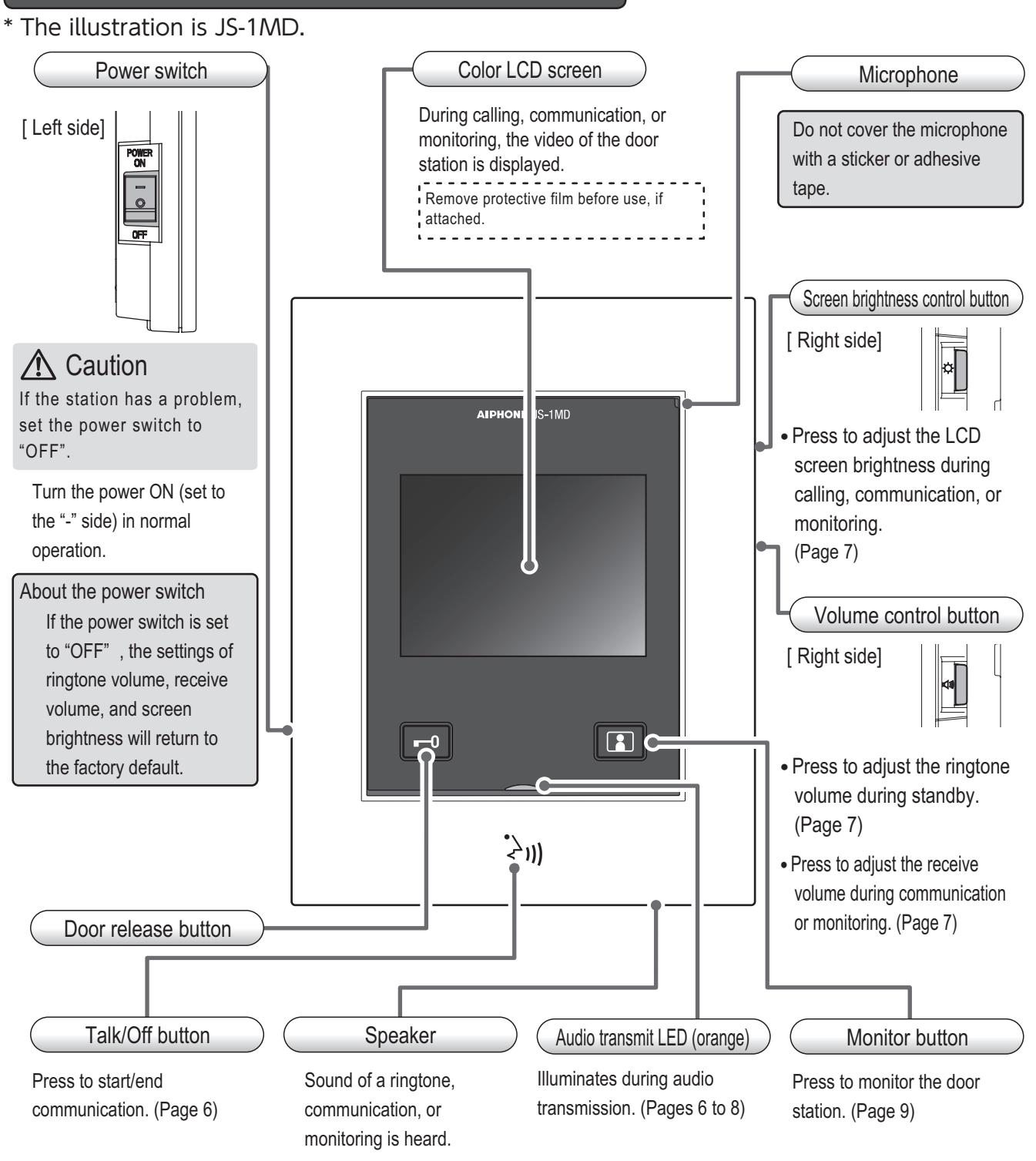
Monitor station JS-1MD/JS-1HD
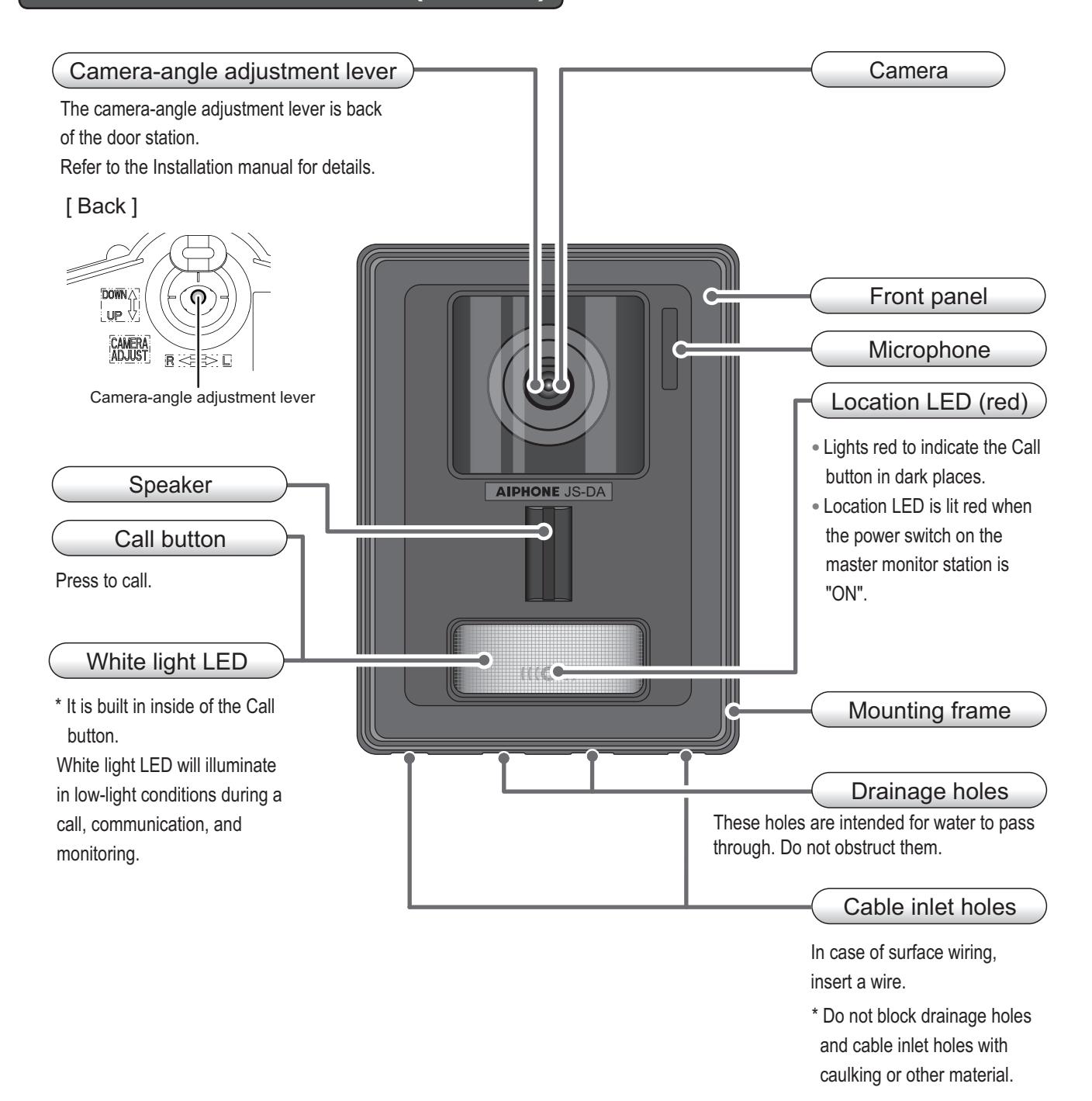
Video door station (JS-DA)
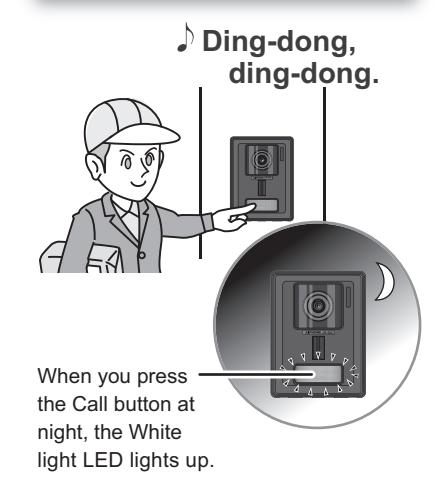
Receiving a call
Video door station
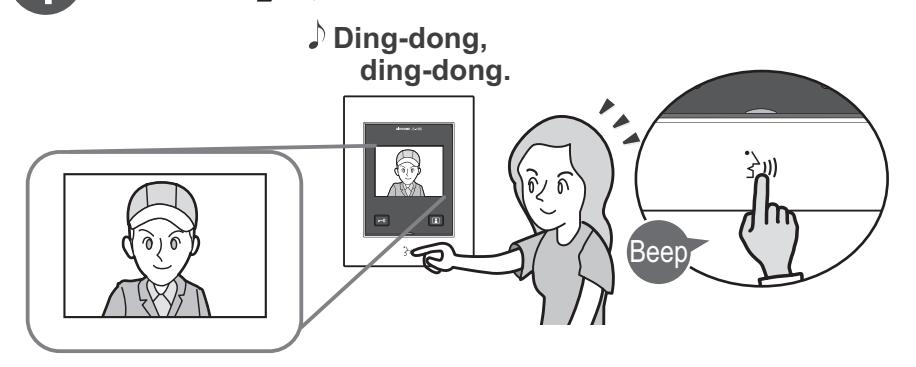
Monitor station (Hands-free talk)
1 Press [ ] button once. When the video is displayed after a call is placed...
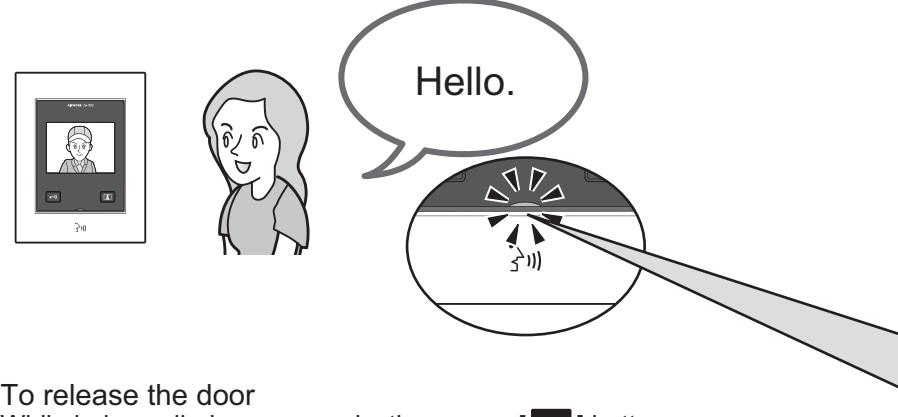
2 Speak with the other party in turns.
While being called or communicating, press [ ] button.
- ・ Available only when an electric lock is installed at the door and connected to the monitor station.
- ・ Please refer to the installation manual for details how to connect an electric lock to the monitor station.
3 Press [ ] button again. To end the communication...
When [ ] button on the monitor station is pressed, the White light LED turns off.
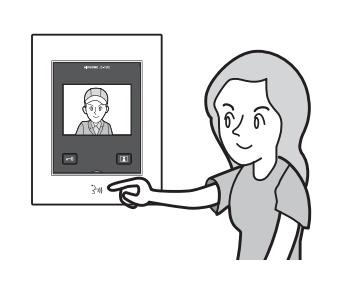
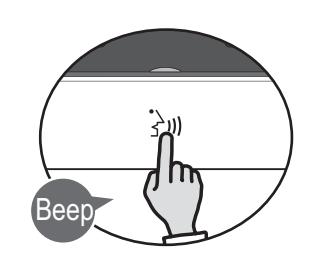
【Call duration】
・The screen turns off after approx. 45 seconds, if [ ] button is not pressed.
【Instant voice call function】
・Visitor's voice can be heard without answering the call. (Approx. 40 seconds)
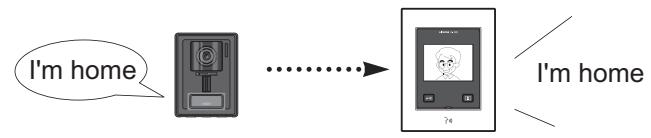
- ・Sound cannot be heard during the ringtone is ringing or the ringtone volume is set to "Mute".
- ・Receive volume can be adjusted during an instant voice call function.
【Talk duration】
- ・Max. approx. 1 minute.
- ・Video and sound will be cut off automatically after approx. 1 minute.
Adjust the incoming ringtone volume
Adjust the ringtone volume by pressing the "Volume control" button during standby.
Volume is adjustable with "Low", "Medium", "High", and "Mute".
- * The factory default is "Medium".
- * When you press the "Volume control" button, the ringtone (Ding-dong) sounds at one of four volume levels. Each time pressing the "Volume control" button changes the volume in the order of "High" - "Mute" - "Low" - "Medium" ... and is set to the volume adjusted last.
- * When "Mute" is selected, a beep sounds.
- * Even if it is "Mute", the ringtone may be slightly heard depending on the surrounding environment.
Adjust the receive volume
Adjust receive volume by pressing the "Volume control" button during communication or monitoring. Volume is adjustable with "Low", "Medium" and "High".
- * The factory default is "Medium".
- * Each time pressing the "Volume control" button changes the volume in order, and is set to the volume adjusted last.
Adjust the screen brightness
Adjust the screen brightness by pressing the "Screen brightness control" button during calling, communication, or monitoring.
Screen brightness is adjustable with "Dark", "Slightly dark", "Normal", "Slightly bright" and "Bright".
- * The factory default is "Normal".
- * Each time pressing the "Screen brightness control" button changes in order, and is set to the brightness adjusted last.
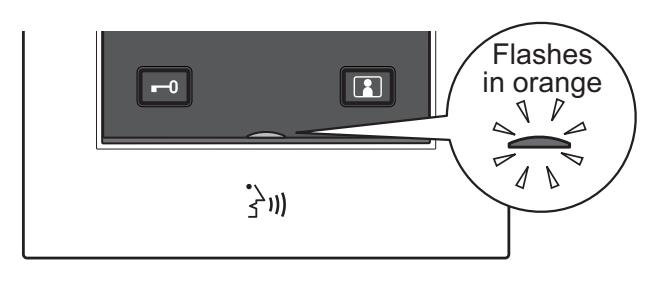
The Audio transmit LED (orange) turns on and off during communication.
Lights up during transmitting audio for the privacy.
1 When speaking

Off Lights up in orange
3 1 2 Switches and repeatedly during communication
【When communication ends】
・Video goes off and returns to the standby screen.
Using the Press-to-Talk mode
Press-to-Talk is useful when the ambient noise is loud enough to interrupt audio.
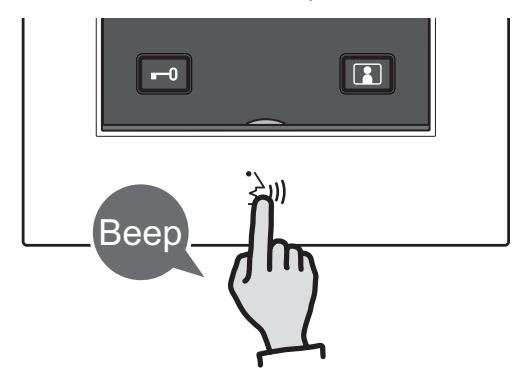
1 Press and hold [ ] button (more than 2 seconds) until the beep sounds.
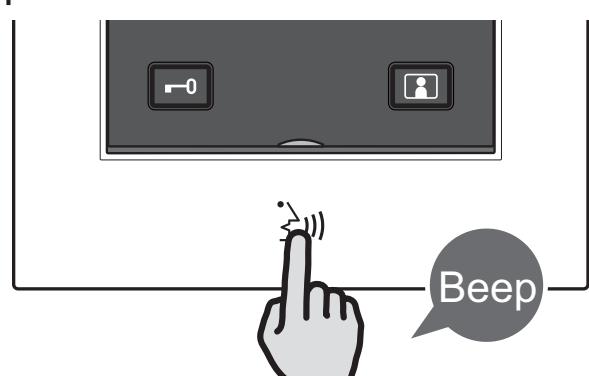
2 Hold [ ] button to speak and then release it to listen.
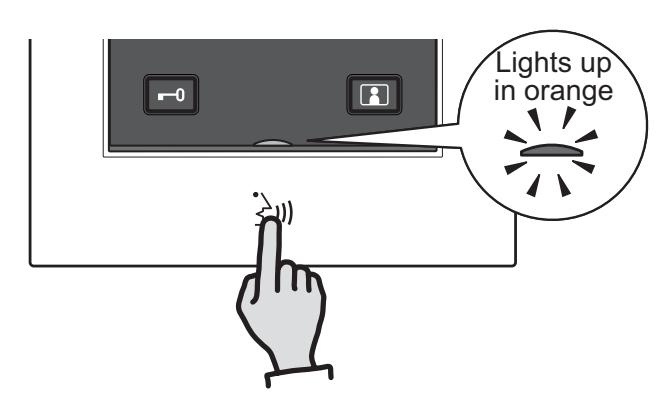
When talking When listening
To end the communication...
-
3
Press [ ] button once.
- ・Video goes off and returns to the standby screen.
Notice
- Cannot return to the Hands-free talk from Press-to-Talk during communication.
- Press-to-Talk will be canceled when the talk ends.
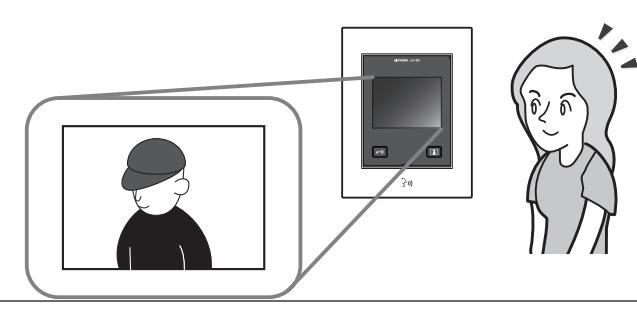
Monitoring the door station
Video door station video and audio can be monitored.
Audio of the monitor station cannot be heard from the video door station until pressing [ ] button.
Screen brightness is adjustable during monitoring. (Page 7)

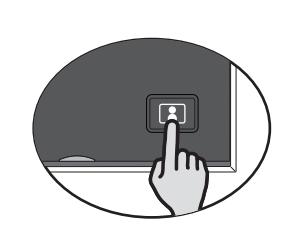
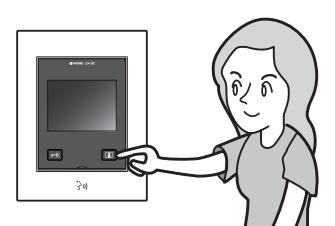
1 Press [ ] button once.
- ・Video from the door station will be displayed and audio can be heard.
- ・Monitoring will end after approx. 2 minutes.
- ・While monitoring, noise filtering is not used, and more ambient sounds may be heard than during communication.
- ・Only one monitor station can monitor or communicate with the door station at a time. If [ ] button is pressed on the non-monitoring/communicating monitor station, a beep will sound.

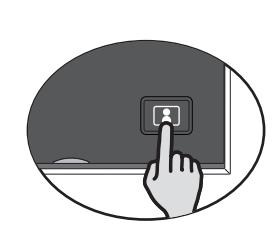
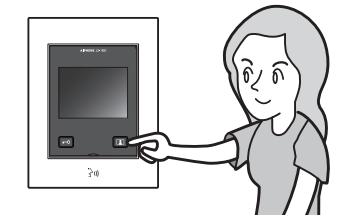
To end the monitoring...

2 Press [ ] button again.
・Both video and audio go off and return to the standby screen.
White light LED
- When [ ] button of the monitor station is pressed at night, the White light LED lights up.
- If you press [ ] button again during monitoring, or press [ ] button during communication to end the call, the White light LED turns off.
- During calling, communication, or monitoring, the White light LED cannot be turned off.
To communicate with the door station during monitoring
To talk ...
Press [ ] button once.
- ・A beep sounds and you can talk with the person.
- * Also you can communicate by pressing [ ] button once during standby.
To end the communication...
Press [ ] button again.
・A beep sounds, the video goes off, and the communication ends.
Troubleshooting
| Problem | Cause | Solution | Page |
|---|---|---|---|
| ・The screen is black. |
・The color LCD screen
is off in standby mode. |
・Press [
] button to display at the door station. |
9 |
|
・Nothing is displayed
even if you press [ ] button. |
・The power switch on
the monitor station is set to "OFF". |
・Set the power switch on the
monitor station to "ON". |
4 |
|
・The screen is white
or displaying white vertical lines or rings. |
・The lens of the door
station is in direct sunlight or another bright light source. (This is not a malfunction.) |
・Install the door station in a
location where it is not pointing direct sunlight. Alternatively, pressing the Screen brightness control button may reduce the glare. |
7 |
|
・The screen is too dark
or too bright, and it is difficult to view. |
・The screen brightness
may be incorrectly set. |
・Adjust brightness with the
Screen brightness control button. |
7 |
|
・The ringtone does not
sound when the Call button is pressed at |
・The power switch on
the monitor station is set to "OFF". |
・Set the power switch on the
monitor station to "ON". |
4 |
| the door station. |
・The ringtone volume is
set to "Mute". |
・Adjust ringtone volume with the
Volume control button. |
7 |
|
・It is difficult to hear the
ringtone or speaker from the door station. |
・Ambient noise around
the monitor station may make it difficult to hear. |
・Adjust volume with the Volume
control button. |
7 |
|
・Communication cannot
be heard even if [ ] button is pressed. |
・The receive volume is
set to "Low". |
・Adjust receive volume with the
Volume control button. |
7 |
|
・Communication is
interrupted, or it becomes a one-way conversation. |
・Loud sounds around
the monitor station or the door station. |
・Because of auto-voice actuation,
audio may be interrupted when a surrounding sound is loud. In that case, enable the Press-to-Talk mode. |
8 |
|
・The other party cannot
hear your voice at all (but can hear the other party's voice). |
・The Press-to-Talk mode
is selected. |
・During the Press-to-Talk mode,
the visitor can only hear incoming audio when [ ] button is pressed on the monitor station. |
8 |
|
・The microphone hole is
covered with a sticker or adhesive tape. |
・Remove the sticker or tape. | 4 | |
|
・Communication is not
possible. |
・During standby, hold
[ ] button for 3 seconds or more. If a beep sounds and nothing is displayed on the screen, the station is set to "Display mode". "Display mode": Mode used for display in stores. |
・Exit the "Display mode".
(1) Turn the power switch to "OFF", and then set it to "ON" while holding both the Screen brightness control button and the Volume control button pressed. (2) Keep the Screen brightness control and the Volume control buttons pressed for approx. 1 second for JS-1MD, and approx. 3 seconds for JS-1HD to exit the Display mode. (3) During standby, hold [ ] button for 3 seconds or more to confirm that no beep sound is emitted. |
- |
|
・The Audio transmit
LED is flashing in orange during standby. |
・The wiring between the
door station and the monitor station has a short circuit. |
・Check the wiring, and contact
the contractor. |
- |
|
・Video from the door
station is not displayed. |
・The wiring of the door
station may be interrupted. |
・Contact the contractor. | - |
10
Maintenance/Specifications
Cleaning
Clean the station with a soft cloth dampened with a neutral household cleanser. Do not use any abrasive cleaner or cloth.

CAUTION:
Do not use chemicals such as thinner or benzine. In addition, do not use a scrub brush, sandpaper, etc. Use of such substances will damage or discolor the station surface.
Specifications
JS-1MD (Master monitor station) / JS-1HD (Sub monitor station)
| Power supply | 24 V DC |
|---|---|
| Current consumption |
JS-1MD: (MAX) Approx. 225 mA,
JS-1HD: (MAX) Approx. 115 mA |
| Communication | Hands-free (Auto-voice actuation) / Press-to-Talk |
| Screen | 3.5 inch color LCD screen |
| Ambient temperature | 0 - 40°C (+32°F - +104°F) |
| Material | Self-extinguishing resin |
| Color | White |
| Dimensions |
169 (H) × 129 (W) × 28 (D) (mm)
6-5/8 (H) × 5-1/16 (W) × 1-1/8 (D) (inches) |
| Mass |
JS-1MD: Approx. 320 g (0.71 lbs.),
JS-1HD: Approx. 310 g (0.69 lbs.) |
JS-DA (Video door station)
| Power supply | Supplied from master monitor station |
|---|---|
| Camera |
Complementary metal oxide semiconductor
(CMOS) |
| Minimum subject illumination | 5 Lux at 50 cm (20") distance |
| Ambient temperature | -10 - +60°C (+14°F - +140°F) |
| Material | Self-extinguishing resin |
| Color | Black |
| Dimensions |
129 (H) × 97 (W) × 35 (D) (mm)
5-1/16 (H) × 3-13/16 (W) × 1-3/8(D) (inches) |
| Mass | Approx. 200 g (0.45 lbs.) |
| Water/dust protection class | IP54 |
Regulations
FCC
This device complies with part 15 of the FCC Rules. Operation is subject to the following two conditions: (1) This device may not cause harmful interference, and (2) this device must accept any interference received, including interference that may cause undesired operation.
NOTE : This equipment has been tested and found to comply with the limits for a Class B digital device, pursuant to part 15 of the FCC Rules.
These limits are designed to provide reasonable protection against harmful interference in a residential installation. This equipment generates, uses and can radiate radio frequency energy and, if not installed and used in accordance with the instructions, may cause harmful interference to radio communications. However, there is no guarantee that interference will not occur in a particular installation. If this equipment does cause harmful interference to radio or television reception, which can be determined by turning the equipment off and on, the user is encouraged to try to correct the interference by one or more of the following measures:
- Reorient or relocate the receiving antenna.
- Increase the separation between the equipment and receiver.
- Connect the equipment into an outlet on a circuit different from that to which the receiver is connected.
- Consult the dealer or an experienced radio/TV technician for help.
INDUSTRY CANADA
CAN ICES-3 (B)/NMB-3(B)
Warranty
Aiphone warrants its products to be free from defects of material and workmanship under normal use and service for a period of 2 years after delivery to the ultimate user and will repair free of charge or replace at no charge, should it become defective upon which examination shall disclose to be defective and under warranty. Aiphone reserves unto itself the sole right to make the final decision whether there is a defect in materials and/or workmanship; and whether or not the product is within the warranty. This warranty shall not apply to any Aiphone product which has been subject to misuse, neglect, accident, power surge, or to use in violation of instructions furnished, nor extended to units which have been repaired or altered outside of the factory. This warranty does not cover batteries or damage caused by batteries used in connection with the unit. This warranty covers bench repairs only, and any repairs must be made at the shop or place designated in writing by Aiphone. This warranty is limited to the standard specifications listed in the operation manual. This warranty does not cover any supplementary function of a third party product that is added by users or suppliers. Please note that any damage or other issues caused by failure of function or interconnection with Aiphone products is also not covered by this warranty. Aiphone will not be responsible for any costs incurred involving on site service calls. Aiphone will not provide compensation for any loss or damage incurred by the breakdown or malfunction of its products during use, or for any consequent inconvenience or losses that may result.

https://www.aiphone.net/
Issue Date: Oct. 2019 (A) P1019 AQ 61460