ASSA ABLOY ACCENTRA nexTouch Exit Trim Keypad Locks NTT610, NTT620 Installation and Programming_80-8470-0900-000
Open the original PDF document
View PDF

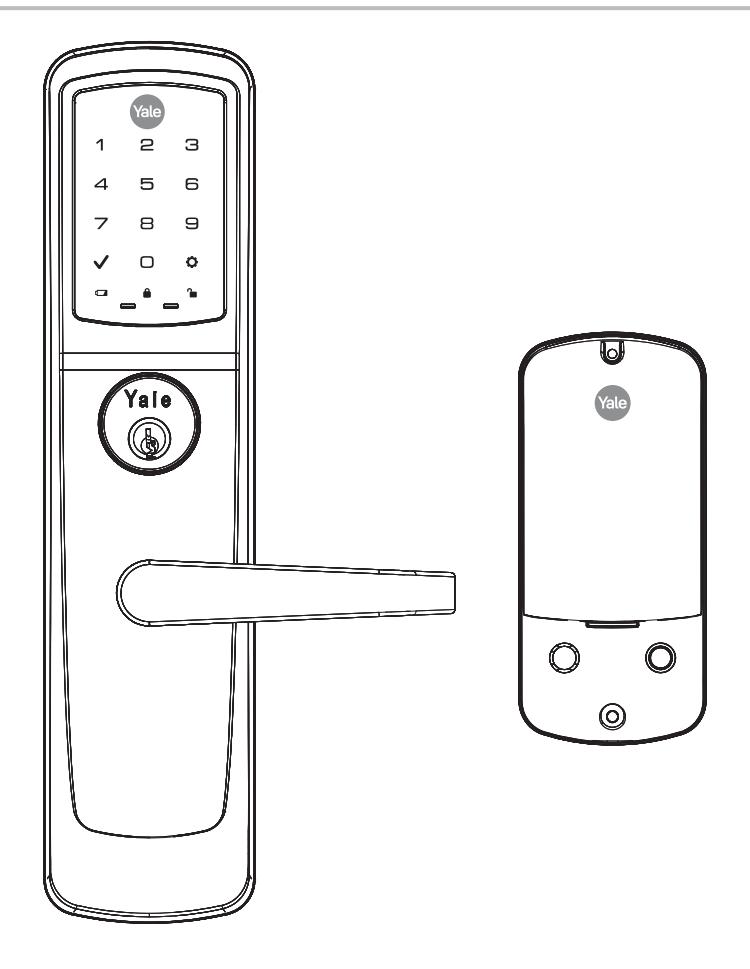
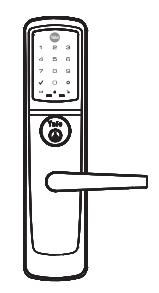
nex Touch ™ Keypad Access Exit Trim Lock Touchscreen and Push Button Installation and Programming Instructions

! WARNING
This product can expose you to lead which is known to the state of California to cause cancer and birth defects or other reproductiveharm.For more information go to www.P65warnings.ca.gov.
08/2018
Retrofitting or modifying this product may impact fire rating, safety features and warranty. Consult with code specifications to ensure compliance with all codes and ratings.
80-8470-0900-000 09-23 Part of ASSA ABLOY
Before You Begin
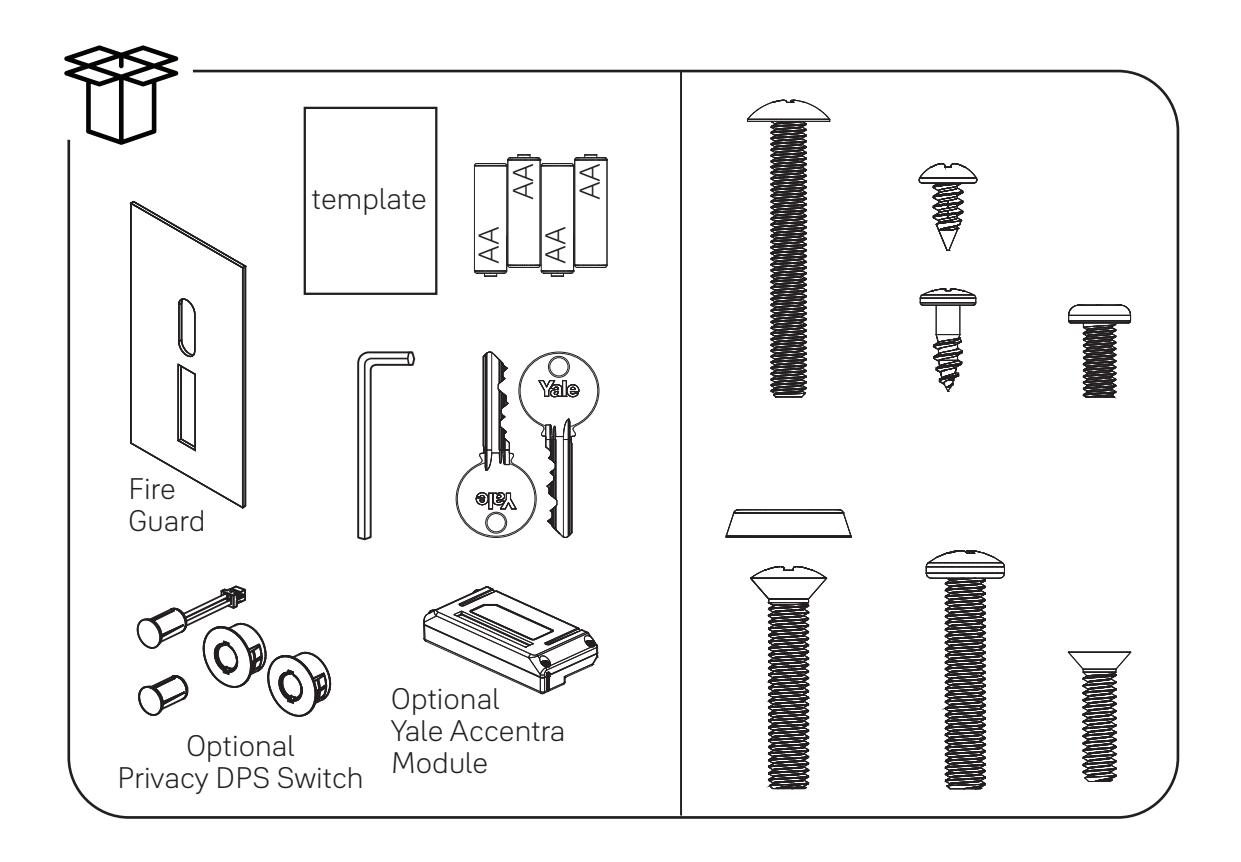
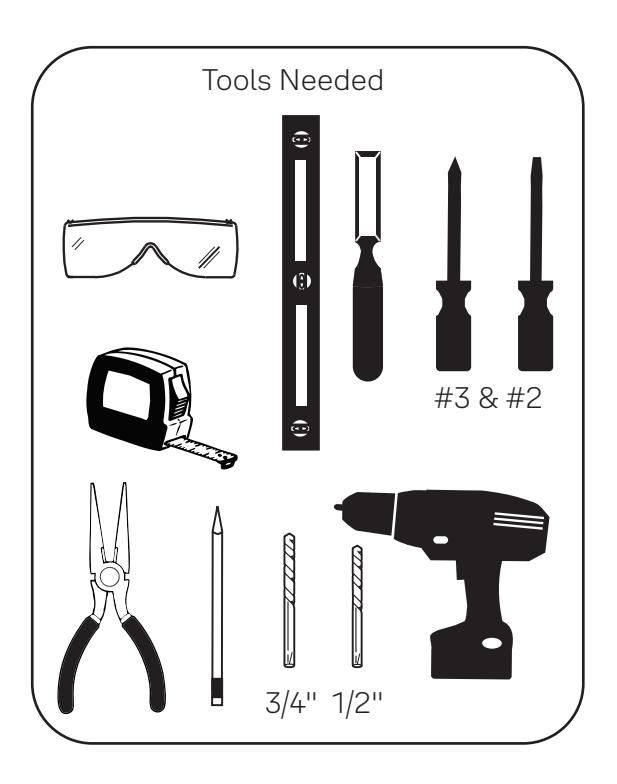
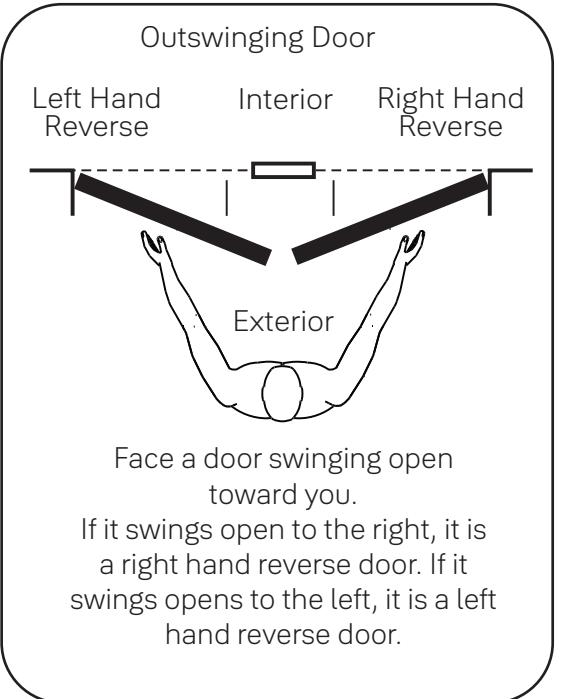
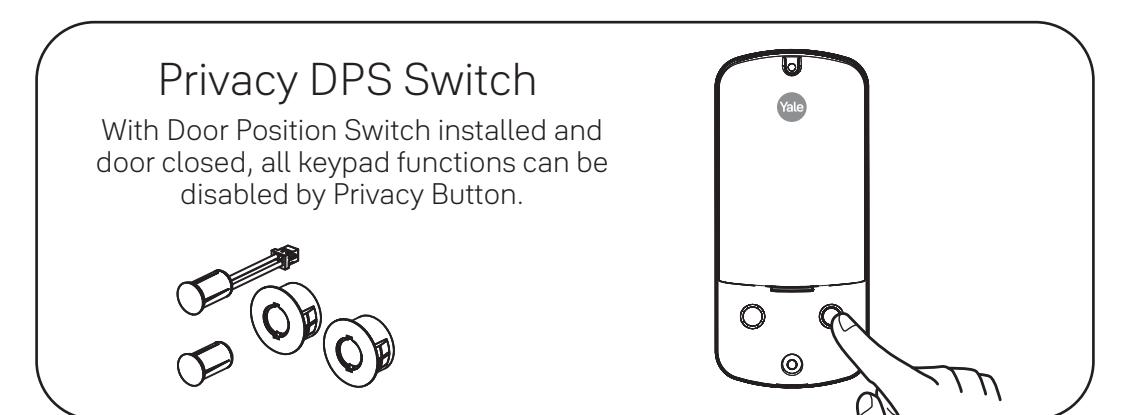
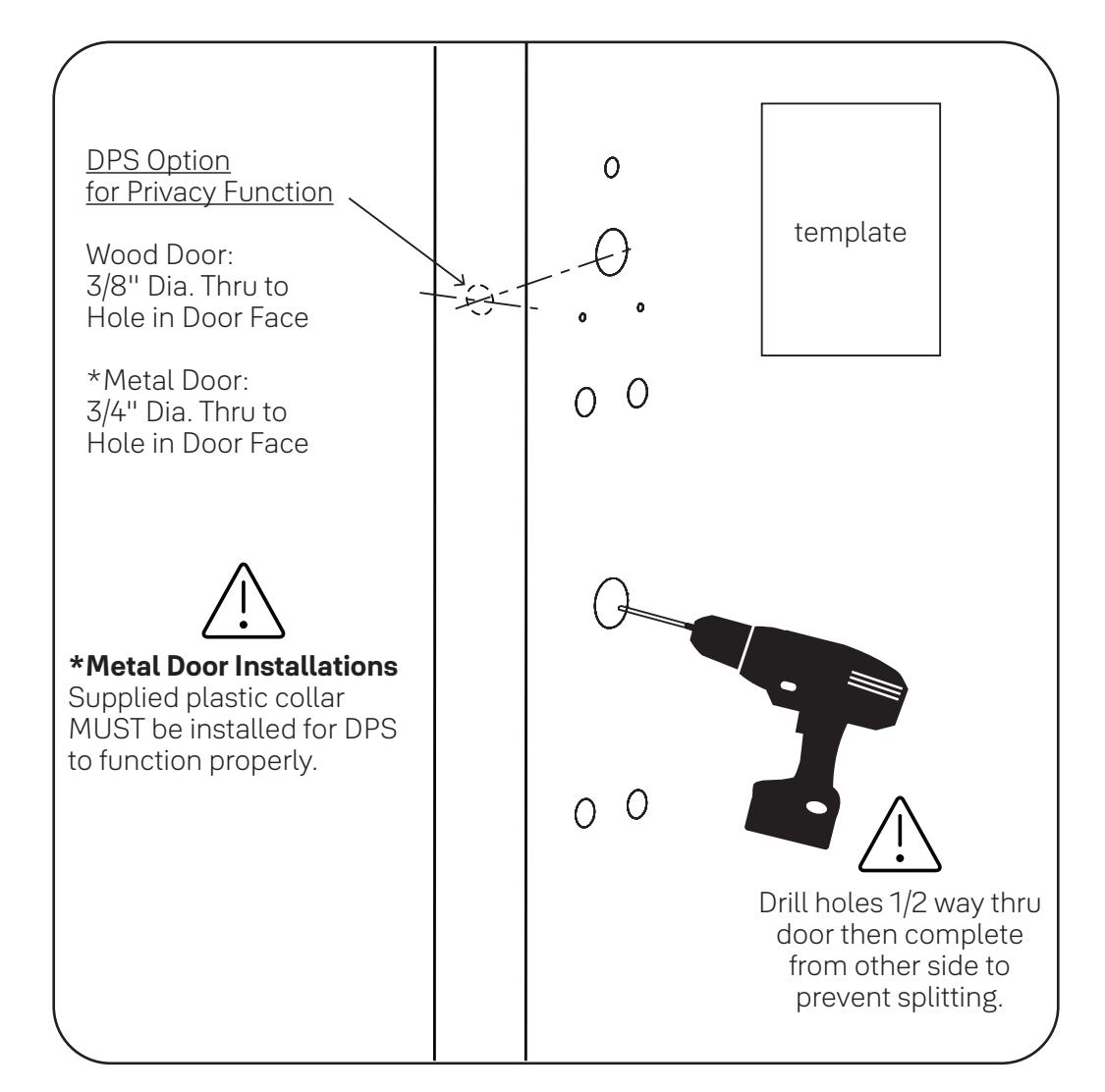
O Door Position Switch Option
Prepare Door
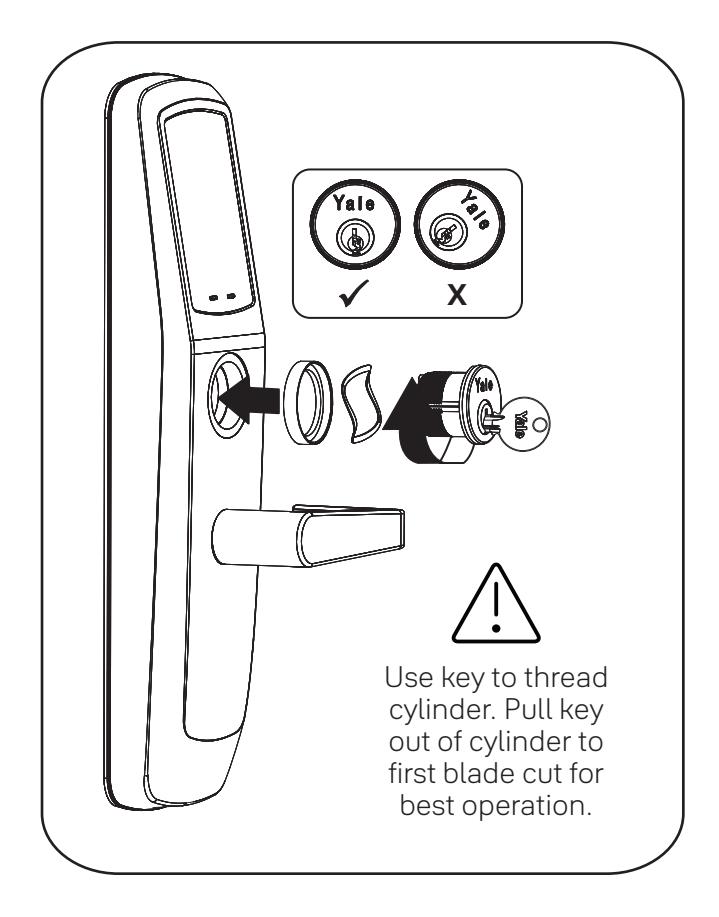
If using cylinder other than 1-1/8", a new collar must be used that is sized appropriately for cylinder length.
Test Cylinder
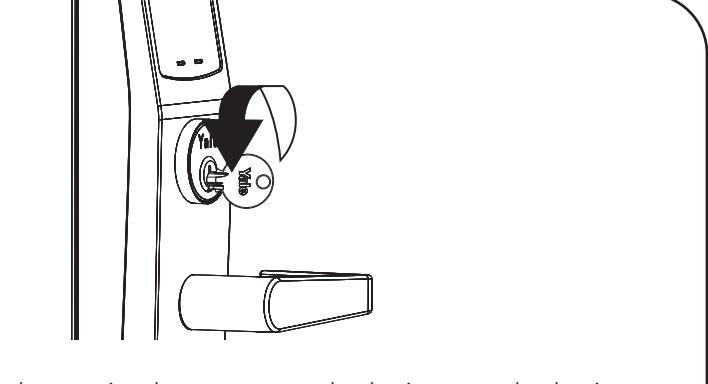
Test cylinder by turning key counter-clockwise to unlock trim. If there is any binding then cylinder is not at correct depth and needs to be threaded further into escutcheon.
Change Hand of Trim (if necessary)
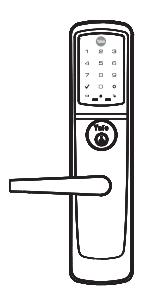
Left Hand Reverse Right Hand Reverse
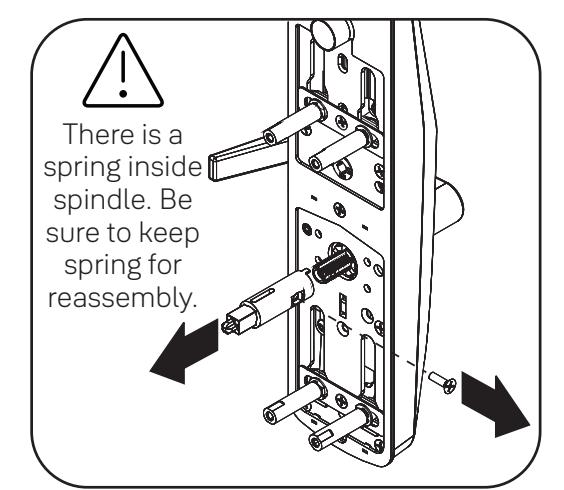
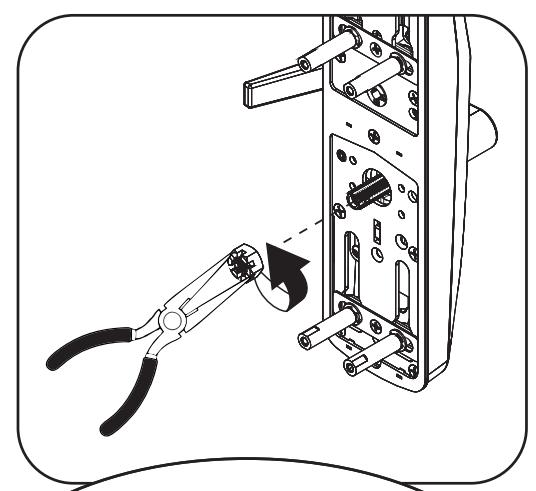
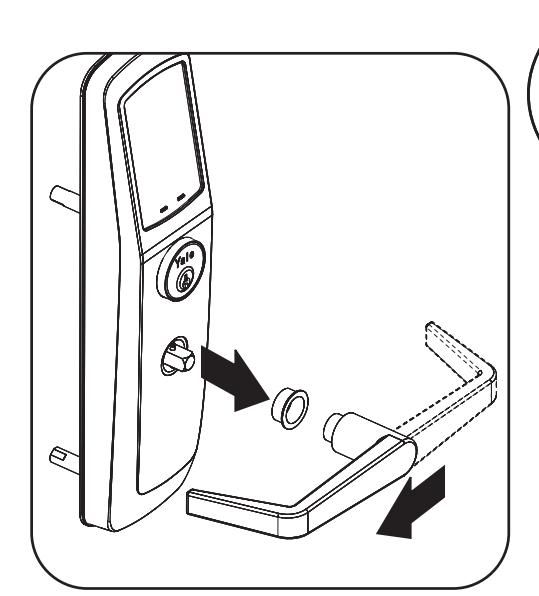
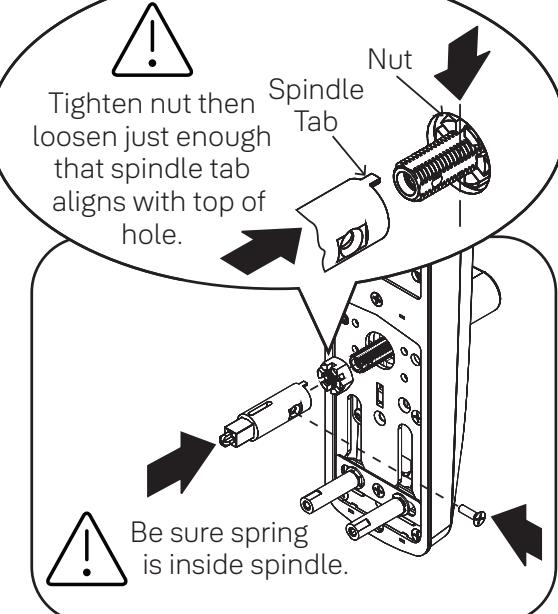
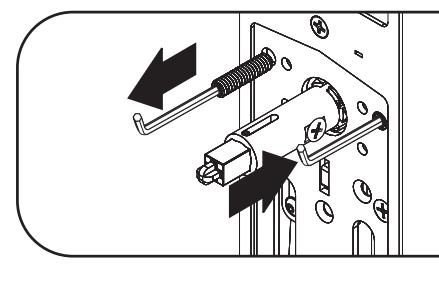
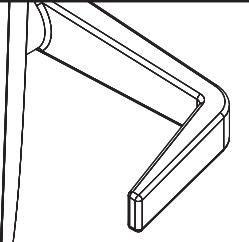

Set screw should be located on same side as lever arm.
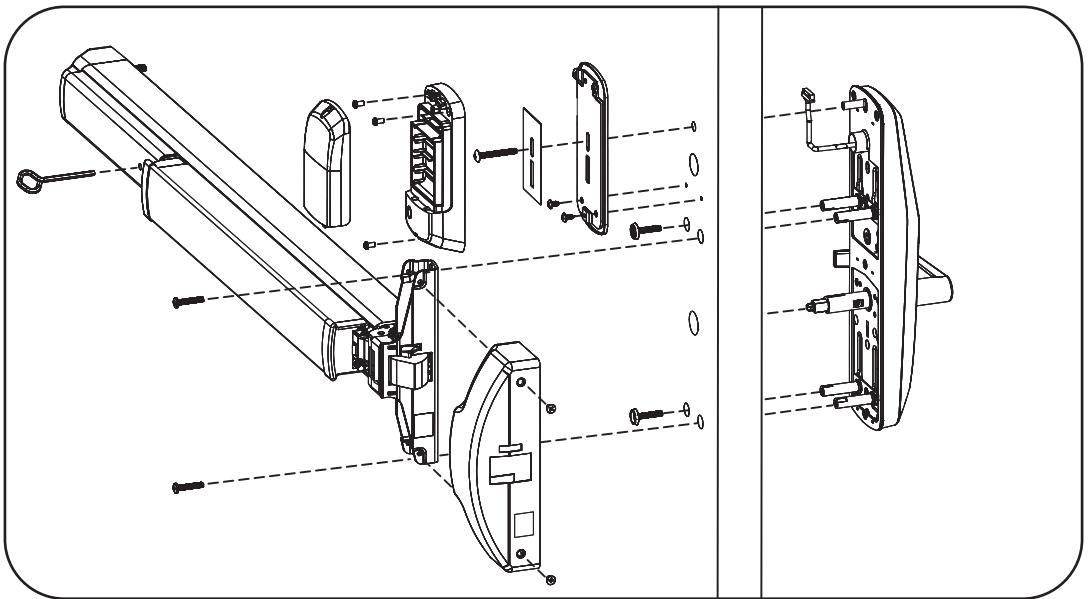
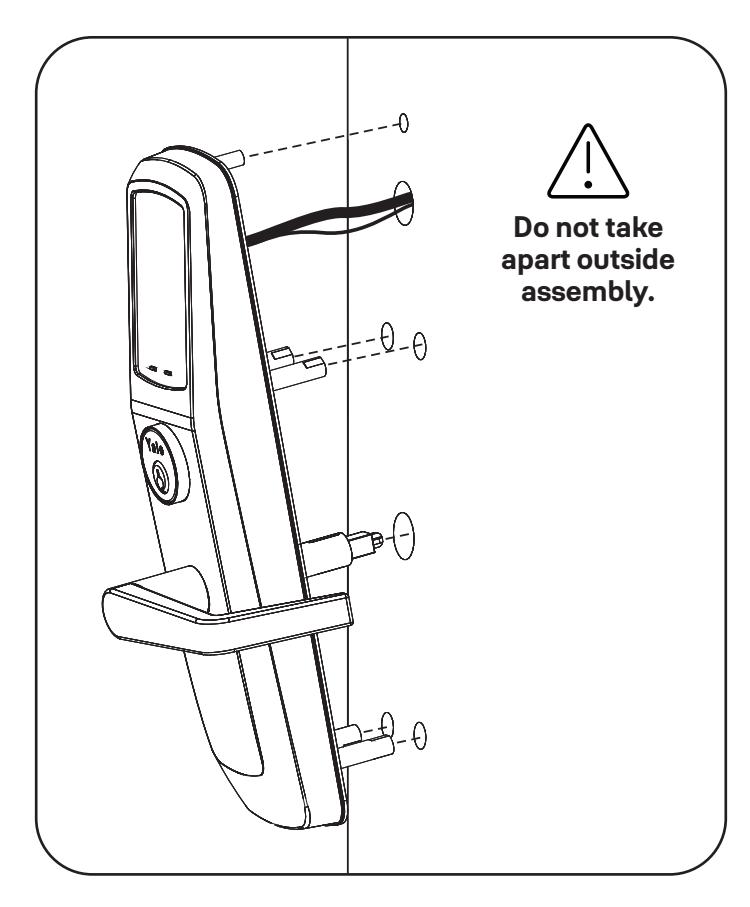
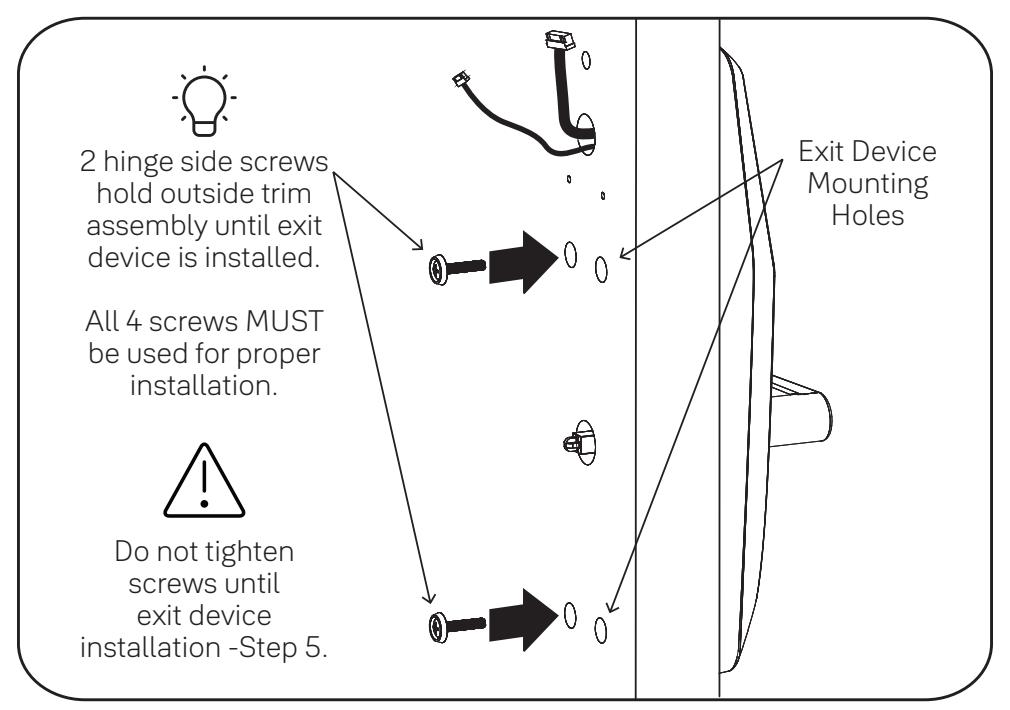
4 Install Outside Trim Assembly
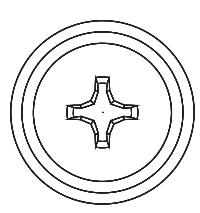
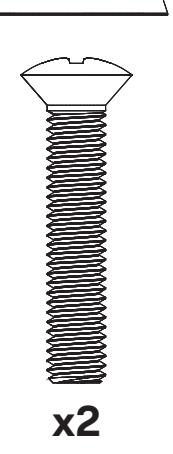
#10-32 x 1" OHPMS
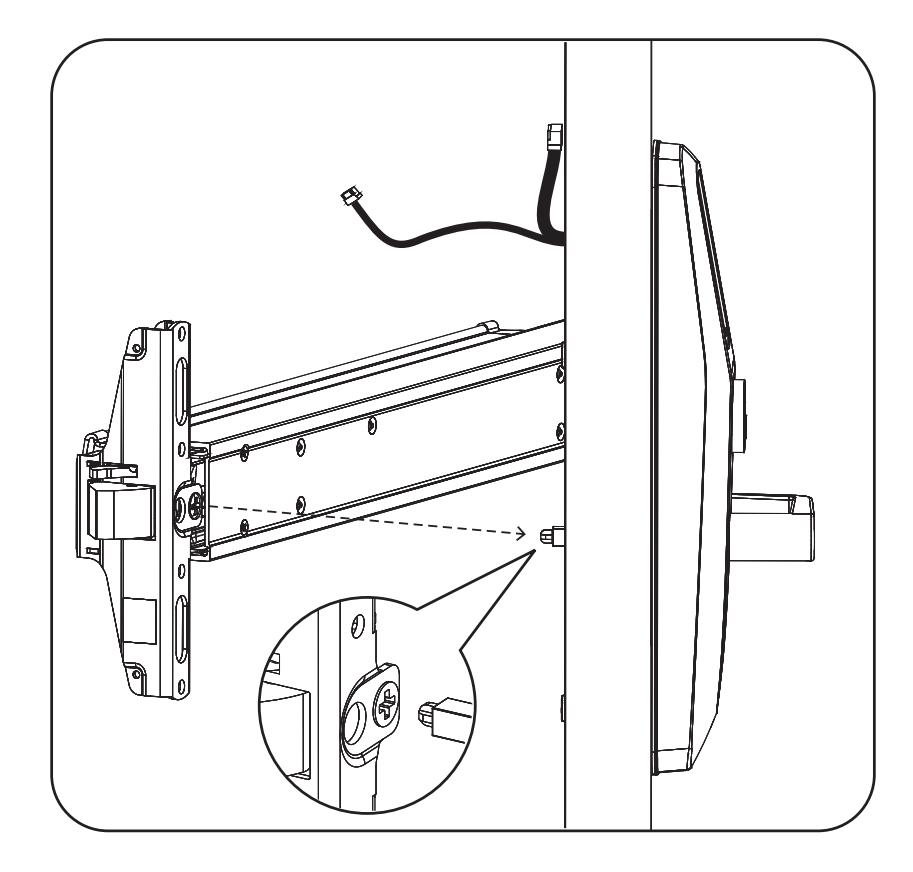
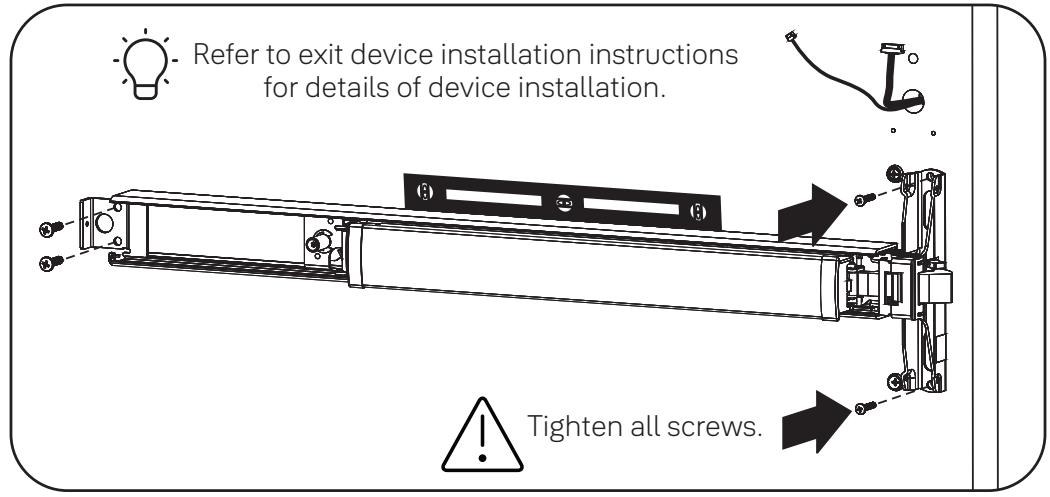
Install Exit Device

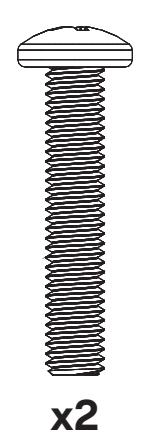
#10-32 x 1" PHMS
Test Mechanical Lock Function by Key, Lever and Keypad
Install Strike and Optional DPS

#10-24 PFHMS

x3
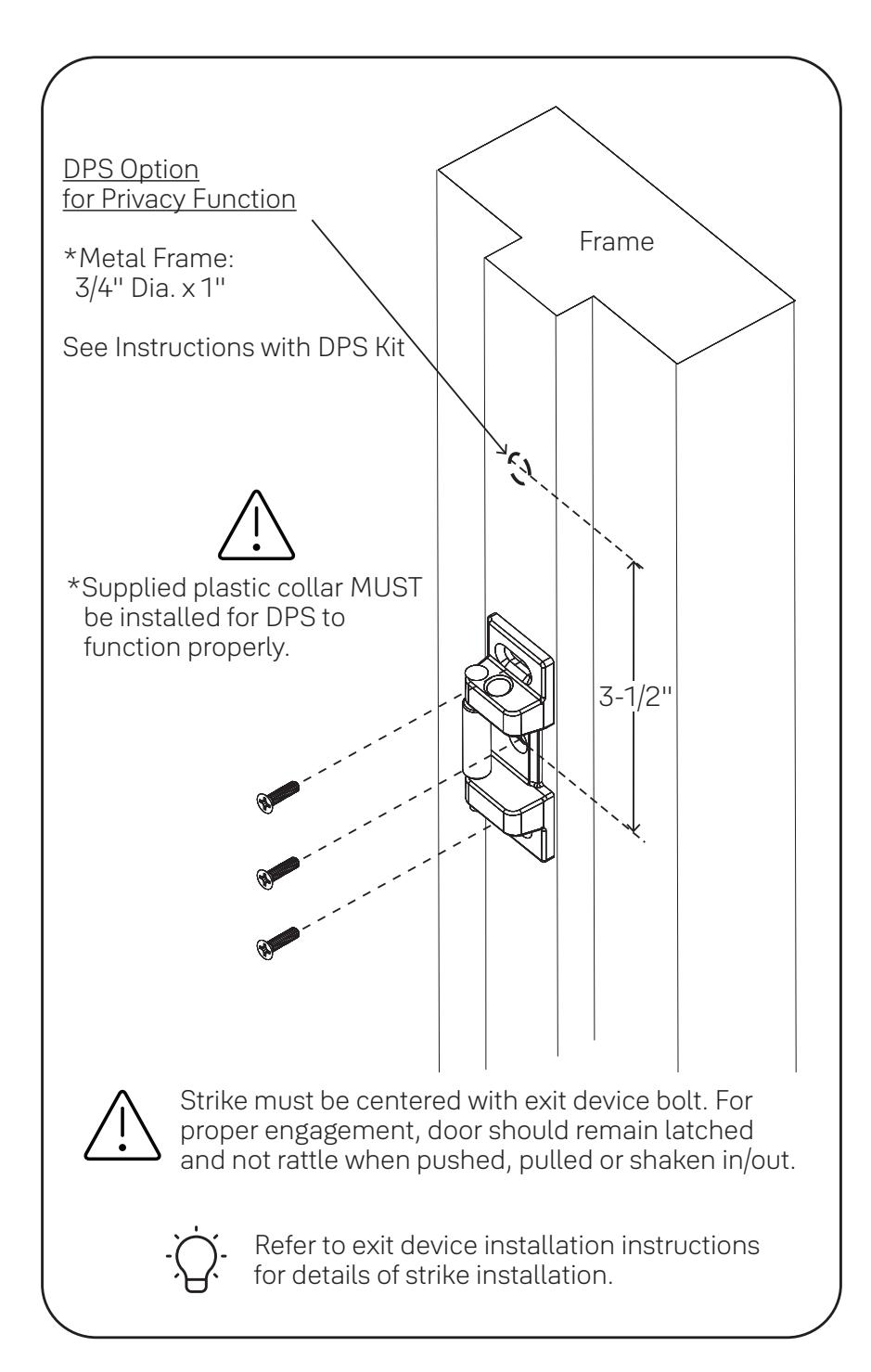
x1 #10-32 x 1-1/2" THPMS
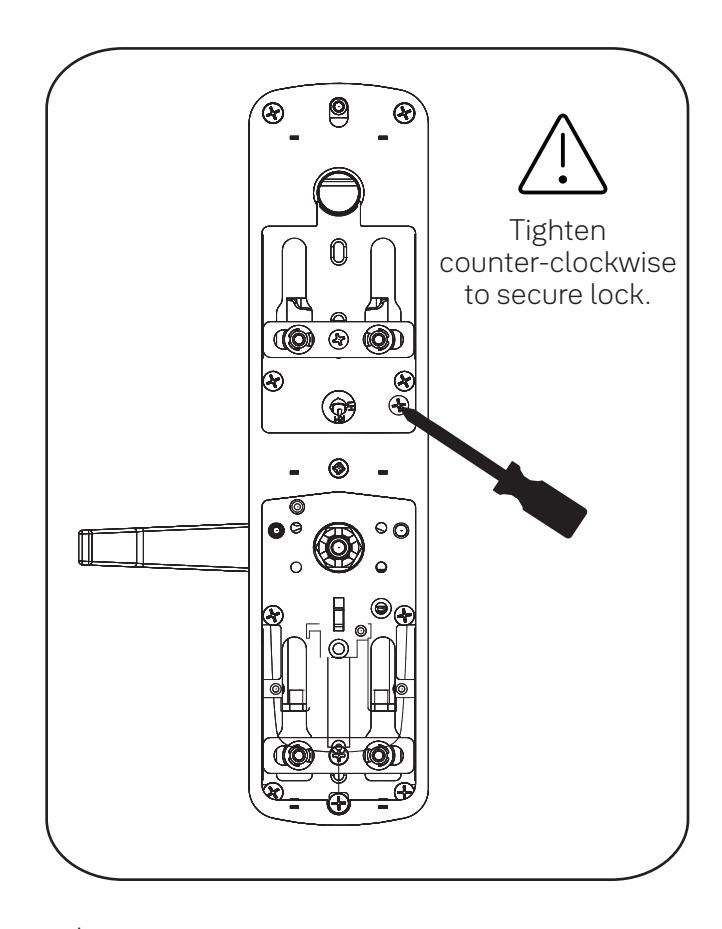
Install Inside Mounting Plate
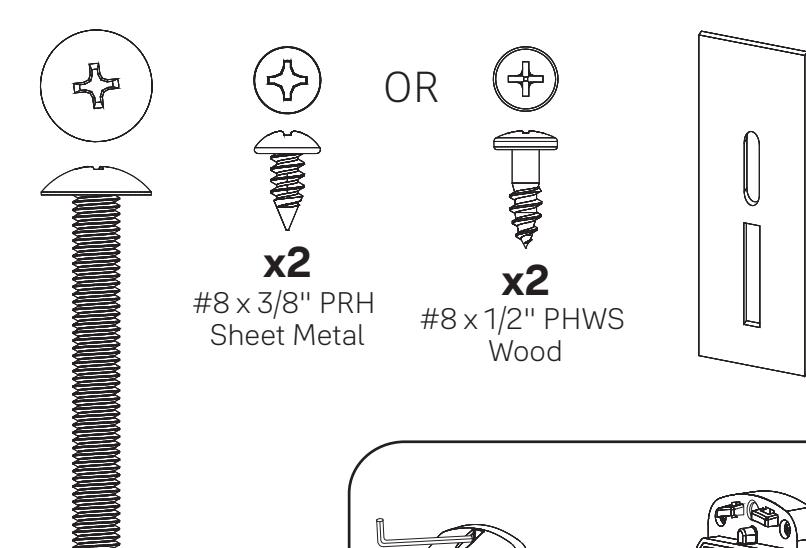
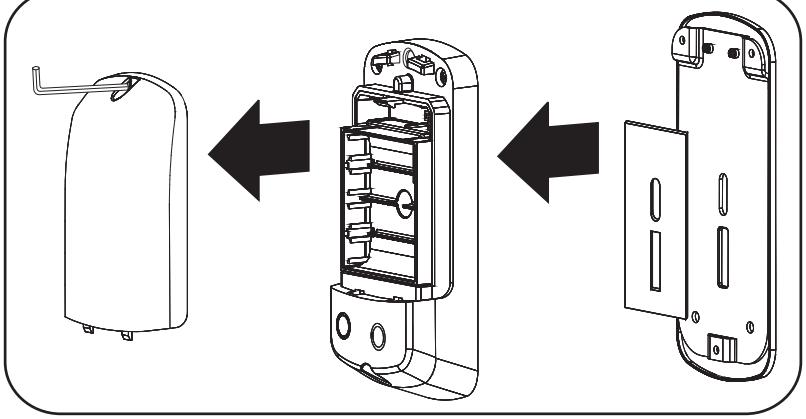
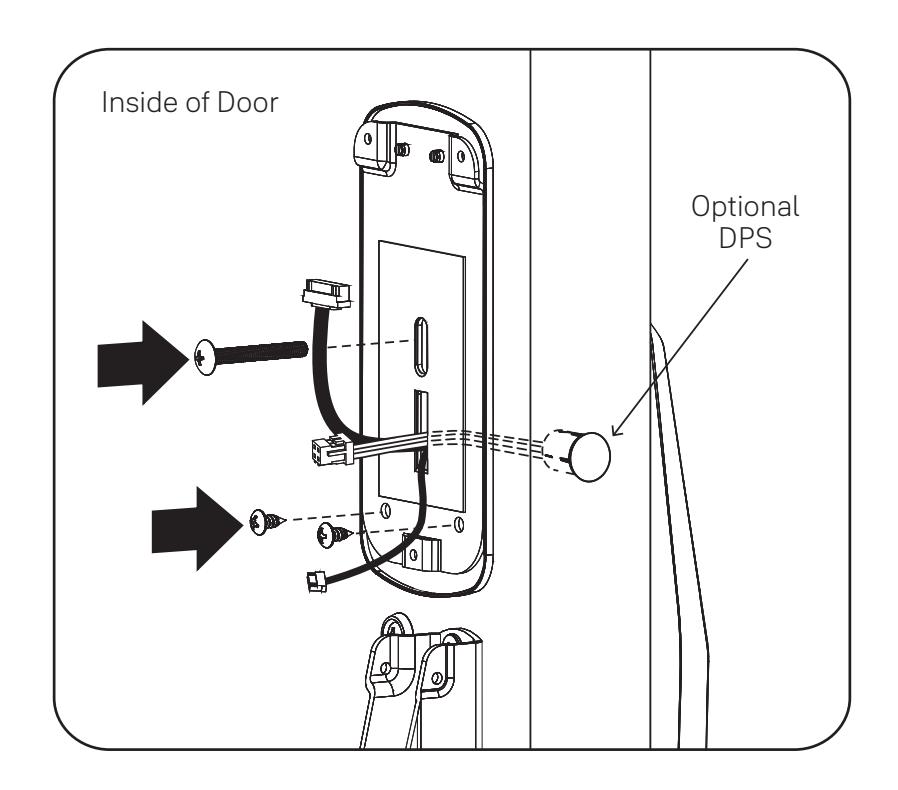
Attach Cables to Inside Lock

#8-32 x 5/16" PHMS
x3
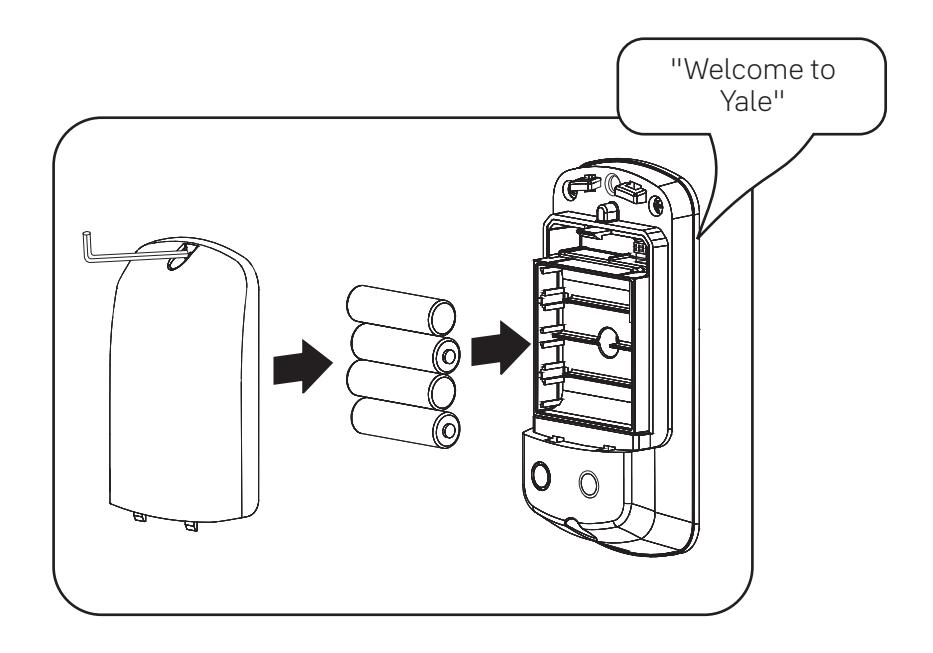
11 Install Batteries & Cover
Test Electronic Lock Function by Keypad
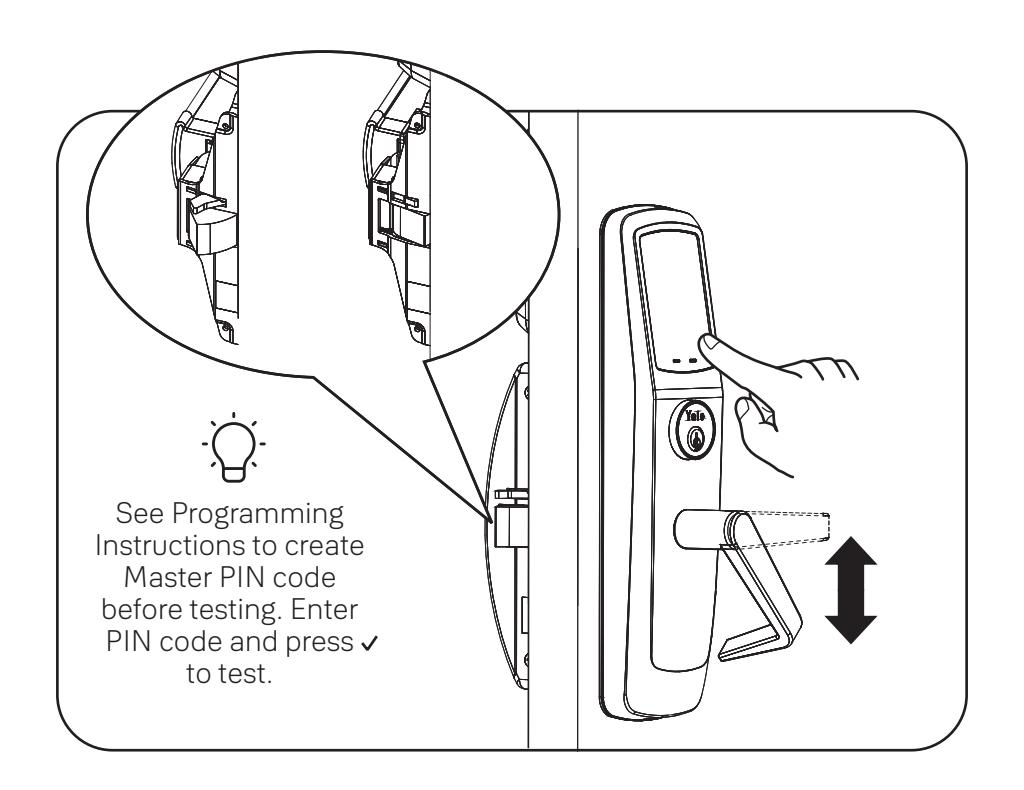
12
Install Exit Device Cover
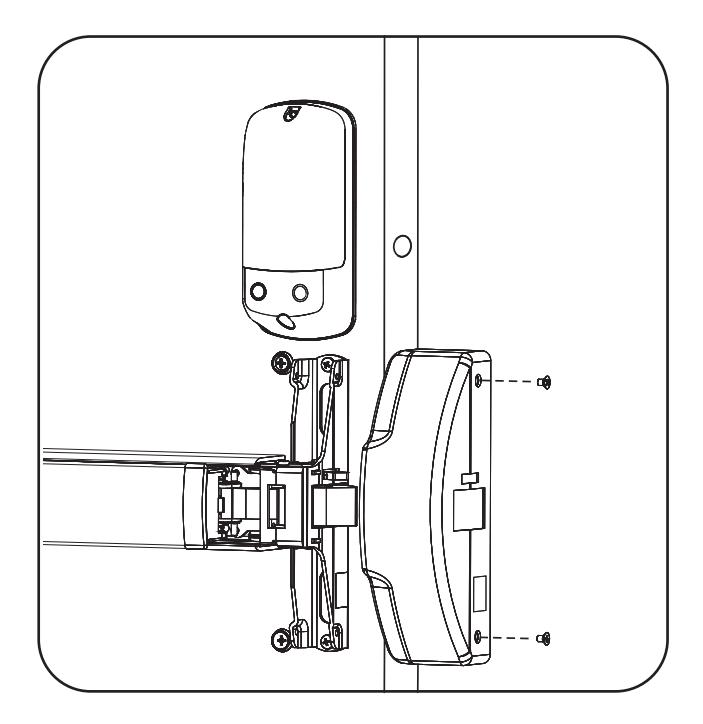
Congratulations, you've installed the Yale nex Touch ™ Exit Trim Lock! Continue to customize your product.
Programming Instructions

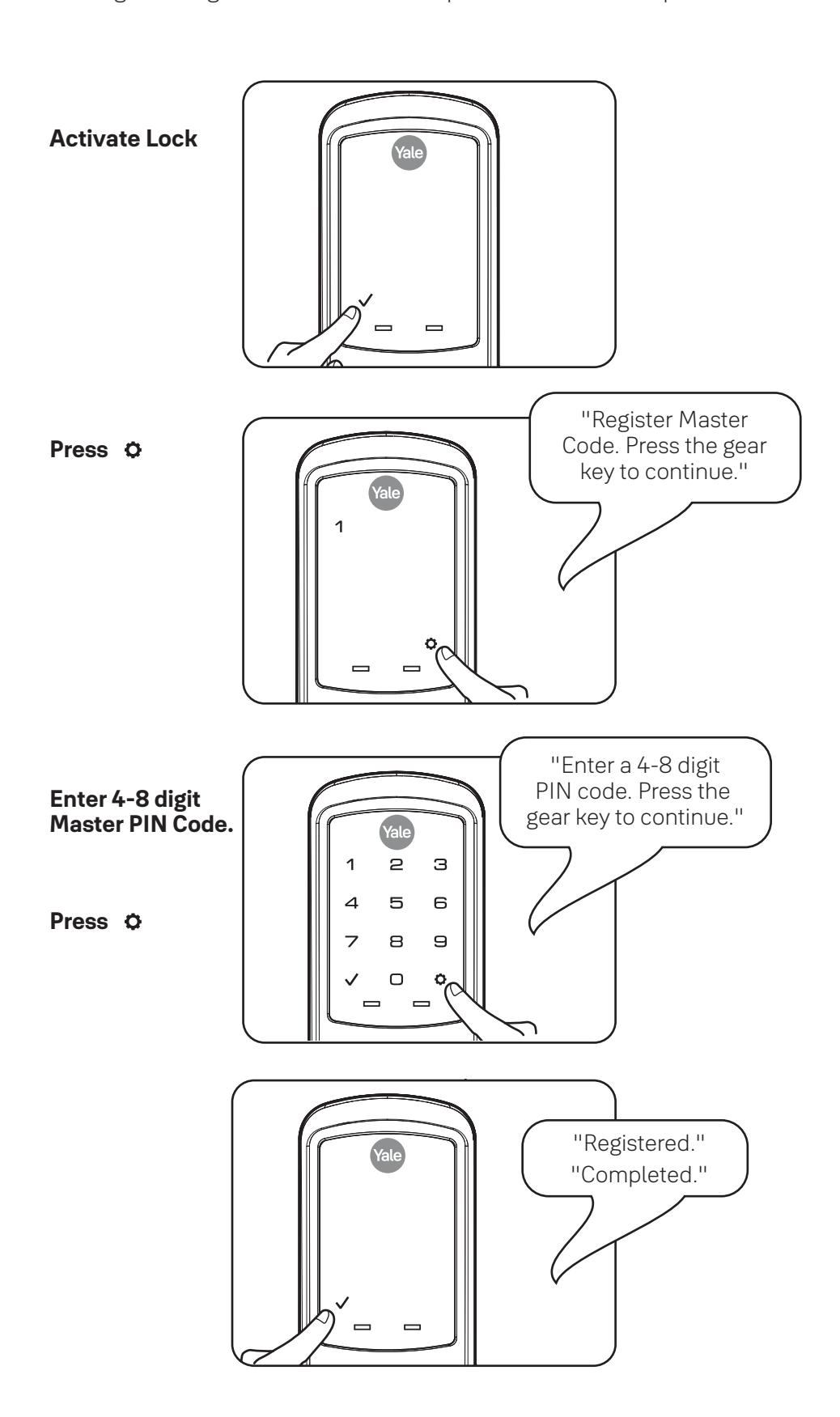
1 Creating Master PIN Code
Creating a Master PIN Code must be performed upon installation or after resetting the lock to factory default. Programming and use of lock is not possible until this step has been successfully completed.
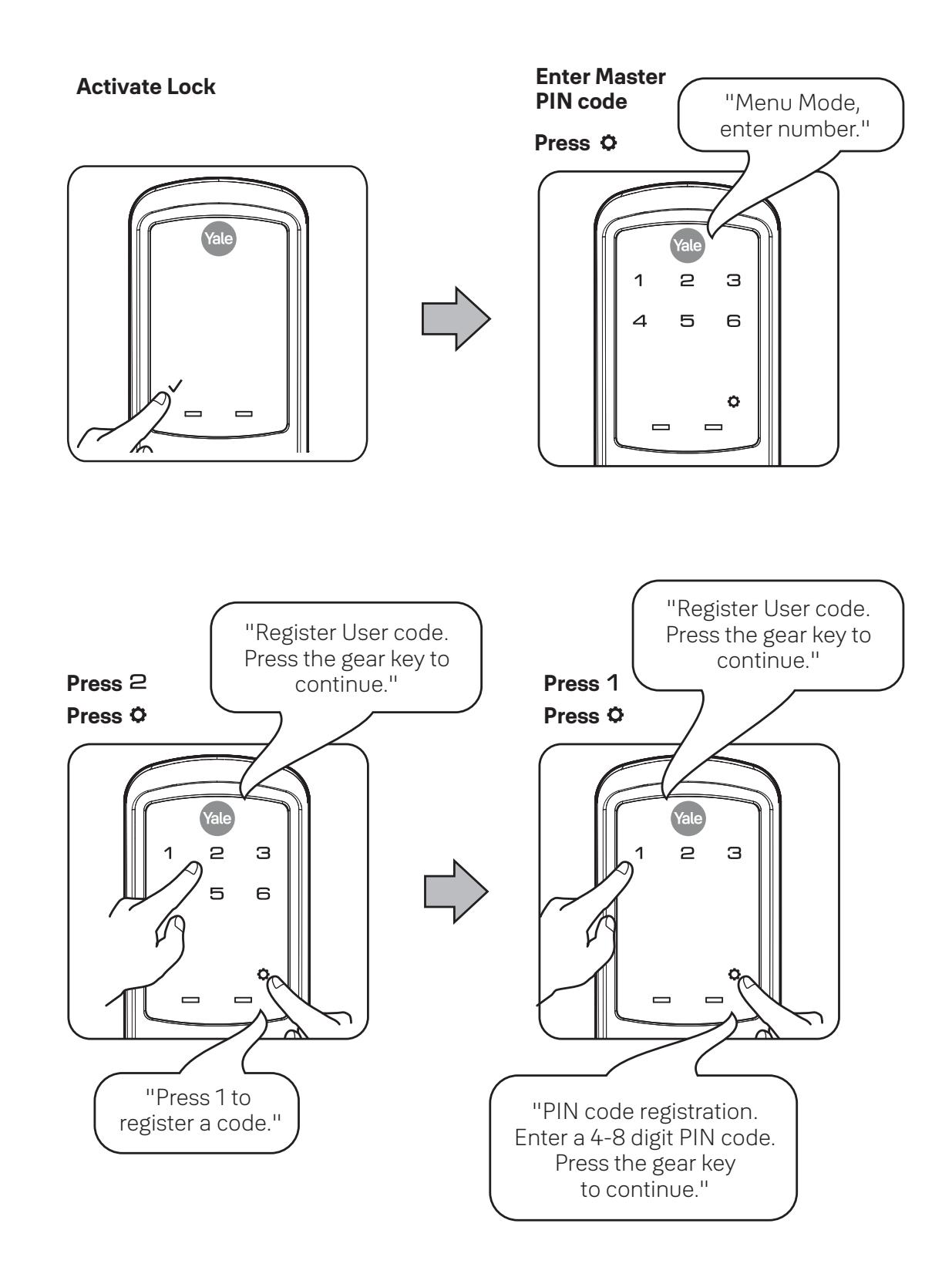
2 Creating User PIN Codes a
Master PIN code must be created first.
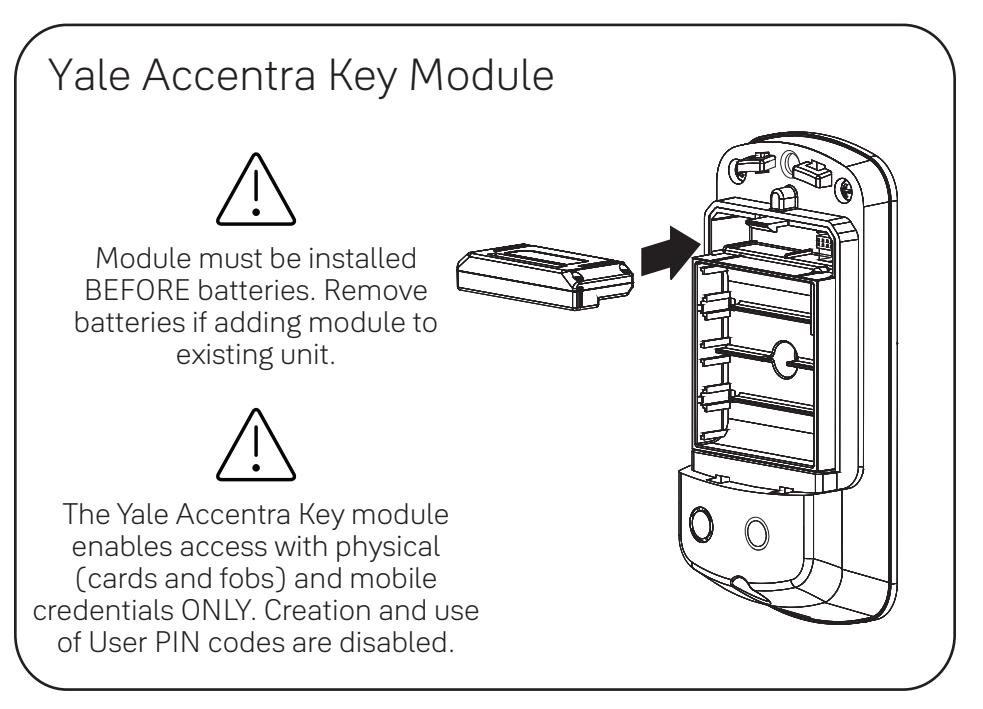
The Yale Accentra Key module enables access with physical (cards and fobs) and mobile credentials ONLY. Creation and use of User PIN codes are disabled.
2b Creating User PIN Codes con't
Enter 4-8 digit PIN code followed by
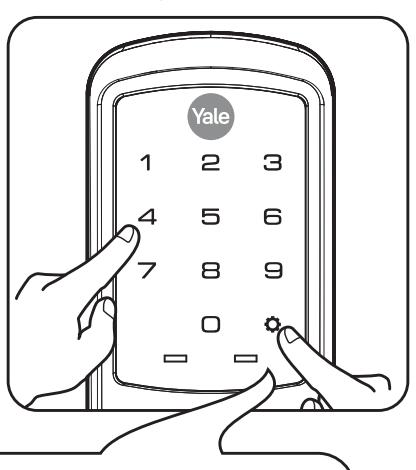
"Registered. Press the check key to complete. Press the gear key to continue."


Adding more User Codes:
Press Enter 4-8 digit PIN code
Press
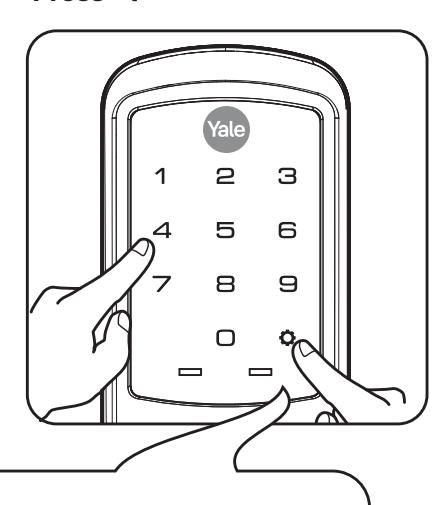
"Registered. Press the check key to complete. Press the gear key to continue."
To end programming:
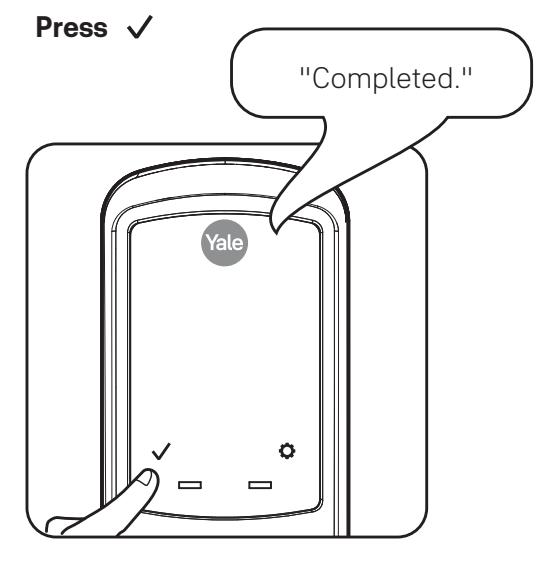

3 Locking & Unlocking Door with Registered Master or User PIN Code
The Yale Accentra Key module enables access with physical (cards and fobs) and mobile credentials ONLY. Creation and use of User PIN codes are disabled. Master PIN code is only used for programming and configuring lock with Yale Accentra Multi-Family configuration app and will not unlock door. When lock is configured into Accentra, "#2" and "#6" will no longer be visible when in "menu" mode.
Activate Lock
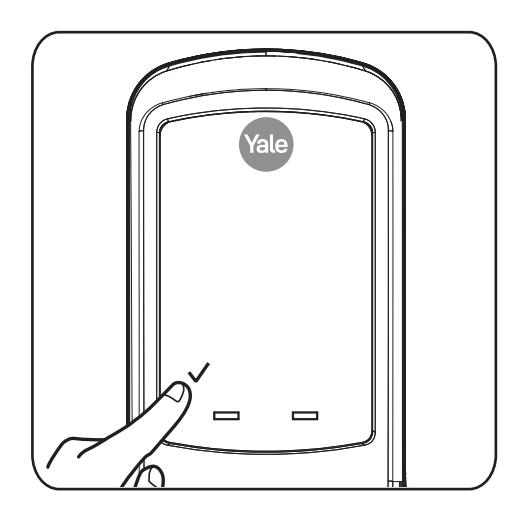
Enter PIN Code
Press
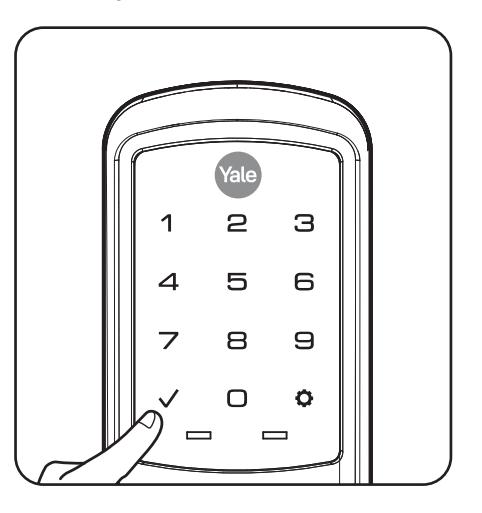
4
Locking Door with Privacy Button
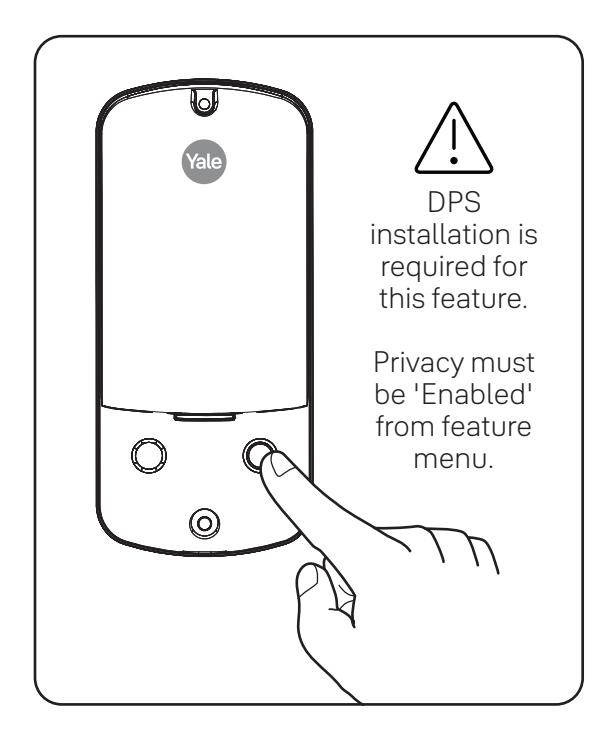
When door is in a Locked state (door closed) press the privacy button once to activate privacy mode. When the door is not in a Locked state, press the privacy button two times. First press puts the door in a Locked state, second time activates privacy mode.
Resetting Lock to Factory Default
Screw Location
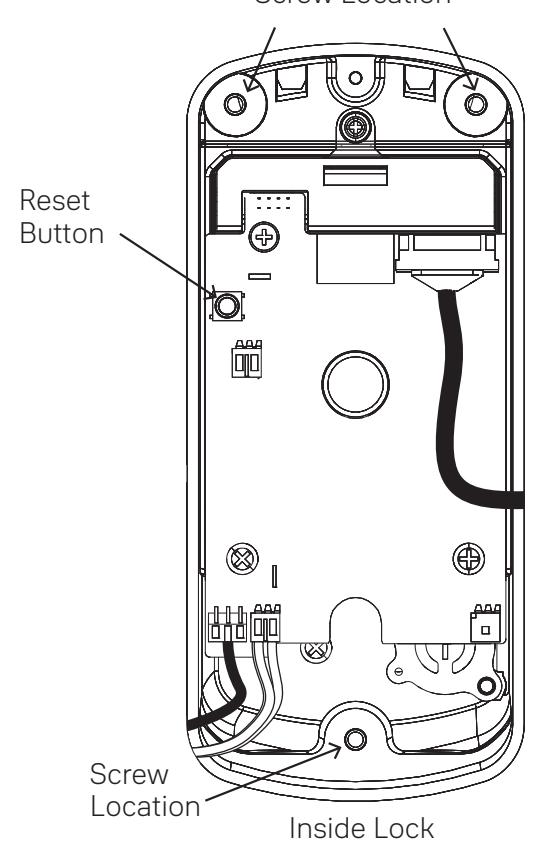
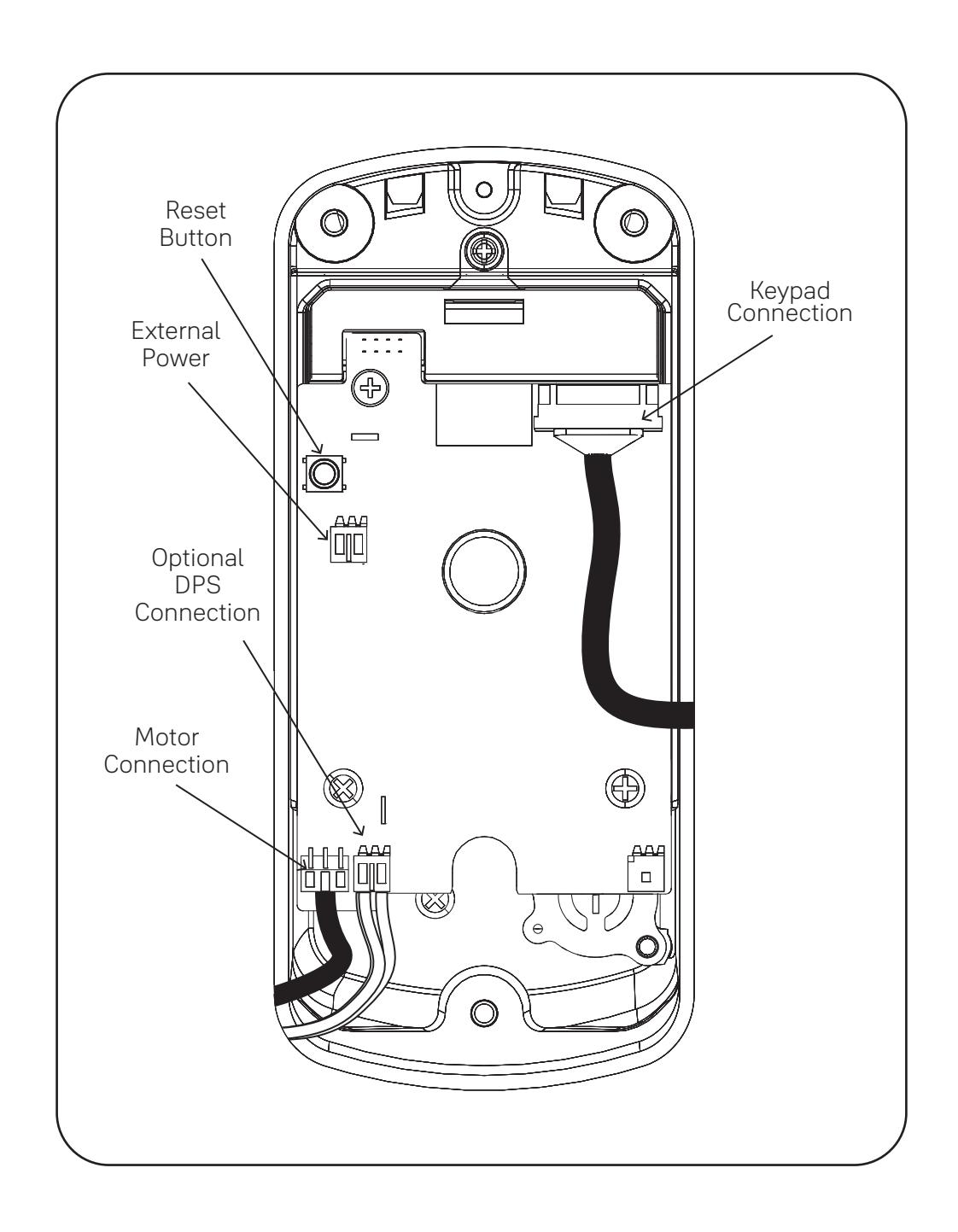
- 1. Remove battery cover with supplied hex wrench.
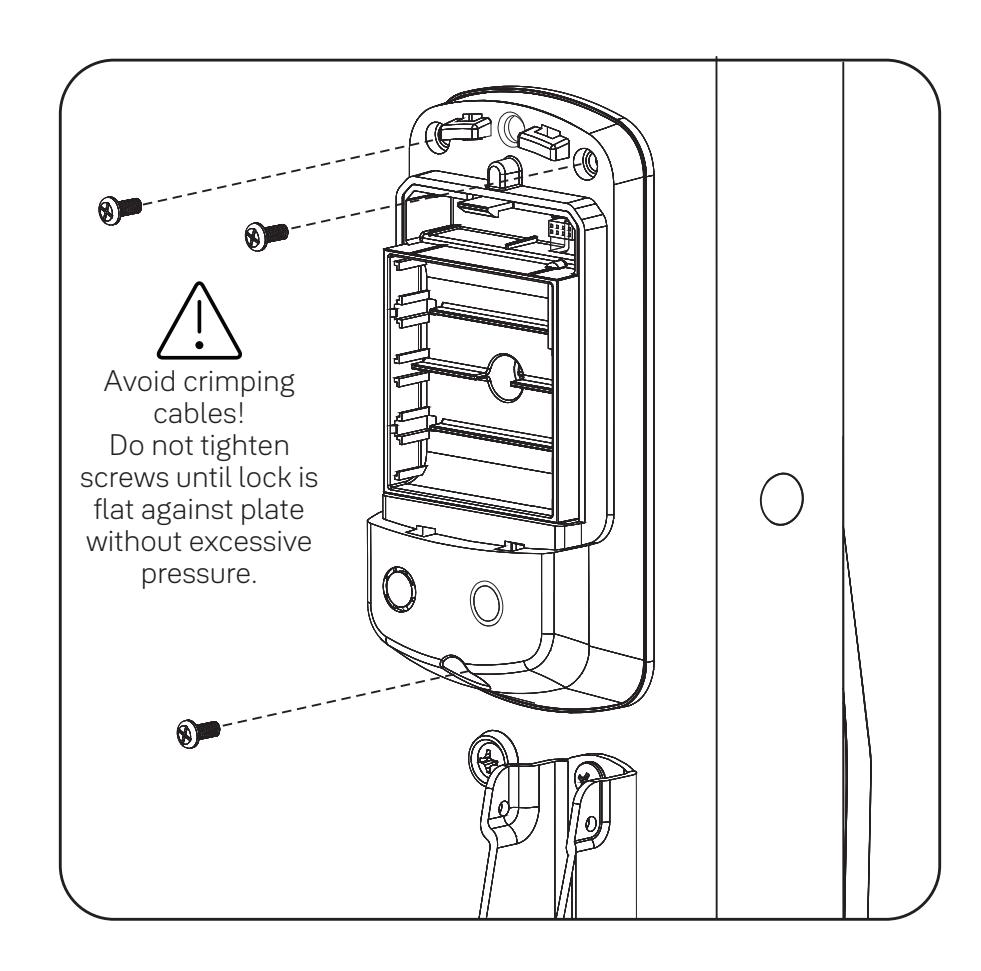
- 2. Remove three (3) screws from inside lock to release lock from bracket plate.
- 3. Remove Yale Accentra module if installed.
- 4. Reset button is on back of inside lock. Cables may stay connected. (See illustration for location of reset button.)
- 5. Press reset button for 3 seconds.
- 6. While continuing to press reset button, temporarily remove one (1) AA battery.
- 7. Reinstall battery.
- 8. Release reset button and wait approximately 15 seconds. Speaker will announce "Welcome to Yale."
- 9. Reinstall inside lock.
- 10. If utilizing a Yale Accentra module, remove batteries. Insert module. Reinstall batteries.
When lock is reset to factory defaults all user codes (including the Master PIN code*) are deleted and all programming features are reset to original default settings (see Factory Settings). Master PIN Code creation is the only option available and must be performed prior to any other programming of the lock.
Definitions
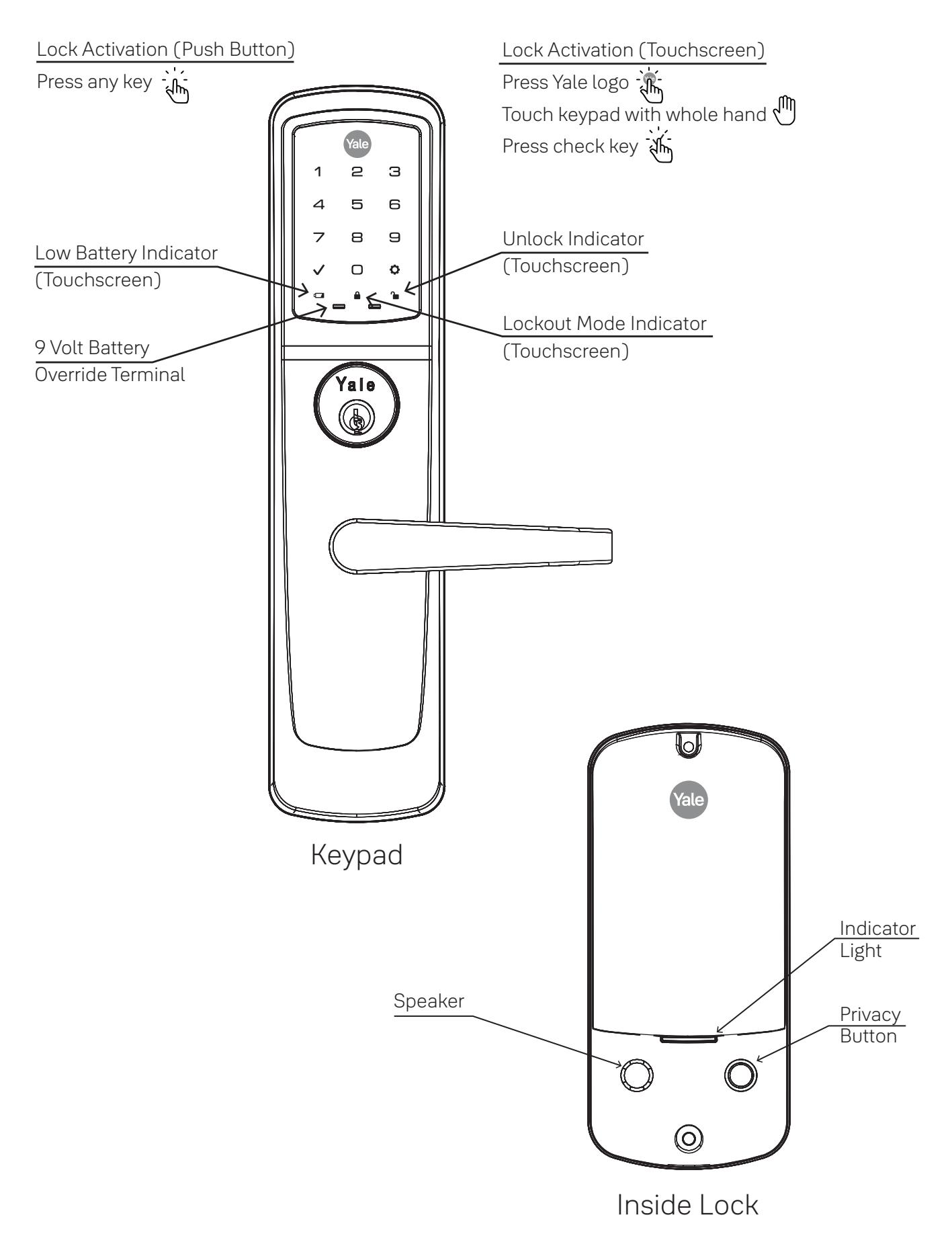
All Code Lockout Mode: This feature is enabled by the Master code. When enabled, it restricts all user (except Master) PIN code access. When attempting to enter a code while unit is in Lockout, there will be an audible lock response. The touchscreen keypad will display a RED locked padlock. (Main Menu selection #6.)
Automatic Re-lock Time: After a successful unlock, unit will re-lock automatically after 3 seconds or for a duration selected in Advanced Lock Settings . (Main Menu selection #3 then #1)
Eco Mode: When enabled, Eco Mode puts unit in low power mode extending life of battery.
Inside Indicator Light: This light will blink red when the trim is locked.
Language Setting Mode: Choose English (1), Spanish (2) or French (3) for lock's voice prompts. (Main Menu selection #5)
Low Battery: When battery power is low, the Low Battery Warning indicator is a flashing red battery icon on the touchscreen keypad and the Yale logo will flash red on the push button keypad. If battery power is completely lost, use 9Volt battery override. To use 9V battery override apply 9V battery, in either direction, to terminals on the touchscreen for backup power option. Activate the touchscreen and enter your pin code to unlock door.
Master PIN Code: The Master PIN code is used for programming and for feature settings. It must be created prior to programming lock. The Master PIN code will also unlock/lock the lock except when configured to Accentra system.
Network Module Setting: With optional Yale Accentra Module installed, this setting becomes available (Main Menu selection #0) and allows the lock to be configured into the Yale Accentra system.
One Touch Locking: When unit is unlocked, activating the lock will lock unit (during Automatic Re-lock duration or when Automatic Re-lock is disabled). When One-Touch Re-lock is not in use (disabled), any valid PIN code will re-lock the lock. (Main Menu selection #3 then #3.)
Passage PIN Code: When used to unlock, lock will remain unlocked/open. Lock cannot be locked/secured until Passage code is entered again.
Privacy Button to Lock Door: A press of this button will lock the door if the door is not locked.
Privacy Mode: With optional Door Position Switch installed, Privacy Mode enabled thru Menu Mode and door closed, all keypad functions can be disabled with a press of the Privacy Button. Privacy Mode is disabled by default. Enable Privacy Mode thru Main Menu selection #3 then #4. With door closed, press and hold the privacy button until voice prompt indicates Privacy Mode is enabled. Privacy Mode duration ends when door is opened and voice prompt indicates Privacy Mode is disabled.
Shut Down Time: Unit will shut down for sixty (60) seconds and not allow operation after wrong code entry limit (5 attempts) has been met. When unit is in Shut down, keypad will be flashing.
Tamper Alert: Audible alarm sounds if attempting to forcibly remove outside lock from door.
User PIN Code: The User PIN code operates the lock when the Yale Accentra Key module is not installed. Maximum number of user codes is 500. NOTE: Maximum number of user codes for NTT620 is 25.
Volume Setting Mode: The volume setting for PIN code verification is set to HIGH (1) by default; otherwise it can be set to Low (2) or Silent (3) for quiet areas. (Main Menu selection #4)
Wrong Code Entry Limit: After five (5) unsuccessful attempts at entering a valid PIN code, lock will not accept a PIN code for duration of shut down time. The touchscreen keypad will flash and a red lock symbol will be at bottom of keypad. The push button keypad will flash and Yale icon will flash blue for shut down period. Keypad will be available after shut down time is complete.
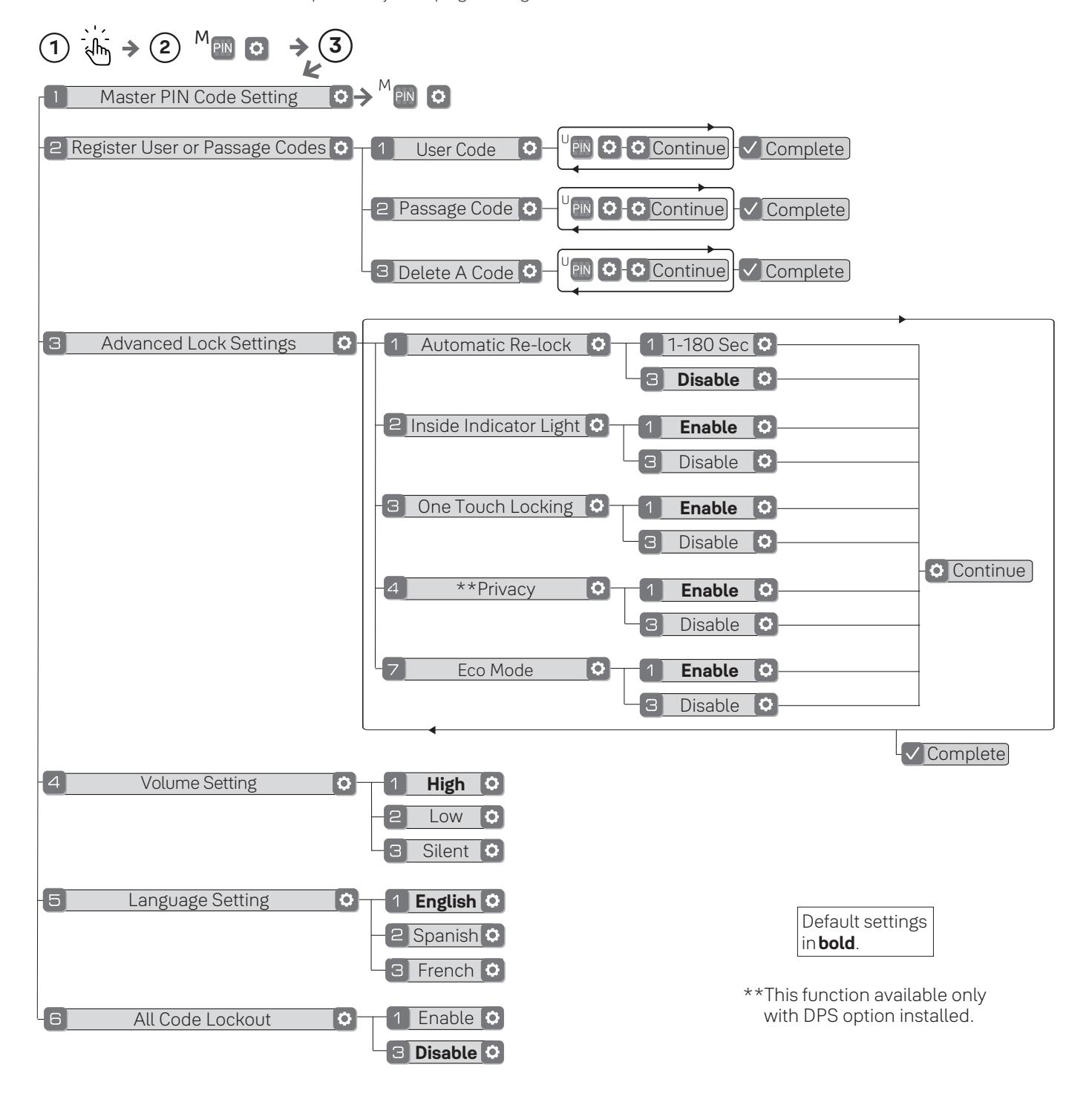
Feature Programming Through Menu Mode Using Master PIN code*
- 1. Activate the lock.
- 2. Enter 4-8 digit master PIN code* followed by key. Lock Response: "Menu mode, enter number (Enter digit corresponding to the function to be performed), press the key to continue."
- 3. Follow the voice commands.
- 4. Press key to complete the process and conclude the programming session.
- *The Master PIN code must be created prior to any other programming of the lock.
Programming Troubleshooting
| Symptom | Suggested Action |
|---|---|
| Lock does not respond. There are no lights or chimes and there is no mechanical sound indicating latchbolt movement. | Touchscreen models become active by pressing Yale logo or ✓ key or by touching keypad with whole hand. Push Button models become active when any key is pressed. • Check batteries are installed and oriented correctly (polarity). • Replace batteries. • Check that cables are fully connected on inside lock and not crimped. • Apply 9V battery to terminals on the keypad for emergency power jump option. |
| Lock wakes but does not respond. Lights dim. | Batteries do not have enough power. Replace batteries. |
| Lock chimes to indicate code acceptance, but door will not open. |
|
| Lock operates to allow access, but will not automatically re-lock. |
|
|
User/Passage PIN codes
will not register. |
|
| Upon entering a User/Passage PIN code and pressing the ✓ key, the lock chimes an error or lock times out without responding. |
|
|
TS lock displays "Low
Battery" on keypad. PB lock Yale logo flashes red. |
This is the alert to replace the batteries. Replace all four (4) batteries with new AA Alkaline batteries. |
| The lock operates, but it does not chime. | Ensure Volume is set to Low or High by Master user. |
|
Lock will not enter
Privacy Mode. |
|
NOTE: When batteries are replaced, Yale Accentra Module locks have a real time clock that will be set through the User Interface (UI); it is recommended to verify correct date and time particularly those locks operating under Daylight Saving Time (DST).
Hardware Troubleshooting
Door is binding.
- a. Check that door and frame are properly aligned and door is free swinging.
- b. Hinges should not be loose or have excessive wear.
For additional hardware troubleshooting, please refer to exit device installation instructions.
Factory Settings
| Settings | Factory Setting |
|---|---|
| Master PIN Code | Creation required* |
| All Code Lockout Mode | Disabled |
| Automatic Relock | 3 Seconds |
| Eco Mode | Disabled |
| Inside Indicator Light | Enabled |
| Language | English** |
| One Touch Locking | Enabled |
| Privacy | Disabled |
| Shutdown Time | 60 Seconds |
| Volume Setting | High |
| Wrong Code Entry Limit | 5 Times |
* The Master PIN code must be created prior to any other programming of the lock.
** Language retains chosen setting even when lock is reset to factory default.
FCC:
This device complies with part 15 of the FCC Rules. Operation is subject to the following two conditions: (1) This device may not cause harmful interference, and (2) this device must accept any interference received, including interference that may cause undesired operation.
Any changes or modifications (including the antennas) to this device that are not expressly approved by the manufacturer may void the user's authority to operate the equipment.
Note : This equipment has been tested and found to comply with the limits for a Class B digital device, pursuant to part 15 of the FCC Rules. These limits are designed to provide reasonable protection against harmful interference in a residential installation This equipment generates, uses and can radiate radio frequency energy and, if not installed and used in accordance with the instructions, may cause harmful interference to radio communications, However, there is no guarantee that interference will not occur in a particular installation. If this equipment does cause harmful interference to radio or television reception, which can be determined by turning the equipment off and on, the user is encouraged to try to correct the interference by one or more of the following measures:
- Reorient or relocate the receiving antenna.
- Increase the separation between the equipment and receiver.
- Connect the equipment into an outlet on a circuit different from that to which the receiver is connected.
- Consult the dealer or an experienced radio/TV technician for help.
Modifications not expressly approved by the manufacturer could void your authority to operate the equipment under FCC rules.
Industry Canada:
This device contains licence-exempt transmitter(s)/receiver(s) that comply with Innovation, Science and Economic Development Canada's licence-exempt RSS(s). Operation is subject to the following two conditions:
- (1) This device may not cause interference.
- (2) This device must accept any interference, including interference that may cause undesired operation of the device.
L'émetteur/récepteur exempt de licence contenu dans le présent appareil est conforme aux CNR d'Innovation, Sciences et Développement économique Canada applicables aux appareils radio exempts de licence. L'exploitation est autorisée aux deux conditions suivantes :
- (1) L'appareil ne doit pas produire de brouillage;
- (2) L'appareil doit accepter tout brouillage radioélectrique subi, même si le brouillage est susceptible d'en compromettre le fonctionnement.
FCC and IC RF Radiation Exposure Statement:
This equipment complies with FCC and IC RF Radiation exposure limits set forth for an uncontrolled environment.
This device and its antenna must not be co-located or operating in conjunction with any other antenna or transmitter.
RF du FCC et IC d'exposition aux radiations: Cet équipement est conforme à l'exposition de FCC et IC rayonnements RF limites é-tablies pour un environnement non contrôlé.
L'antenne pour ce transmetteur ne doit pas être même endroit avec d'autres émetteur sauf conformément à FCC et IC procédures de produits Multi-émetteur.
Support Contacts:
Customer Service Phone:
1-800-438-1951
Customer Service Fax:
1-800-338-0965
24/7 Support Phone:
1-855-213-5841
24/7 Support Email:
Support@YaleLock.com Website:
US.YaleHome.com
Email for orders:
orders.yaleres@assaabloy.com
THE YALE BRAND, with its unparalleled global reach and range of products, reassures more people in more countries than any other consumer locking solution.
THE ASSA ABLOY GROUP is the world´s leading manufacturer and supplier of locking solutions, dedicated to satisfying end-user needs for security, safety and convenience.
Yale Commercial is a business associated with ASSA ABLOY Access and Egress Hardware Group, Inc., an ASSA ABLOY Group company. Copyright © 2017 - 2021, ASSA ABLOY Access and Egress Hardware Group, Inc. All rights reserved. Reproduction in whole or in part without the express written permission of ASSA ABLOY Access and Egress Hardware Group, Inc. is prohibited.
Part of ASSA ABLOY 80-8470-0900-000 09-23